How to Run OpenClaw for Free on Oracle Cloud
Oracle Cloud Free Tier gives you 4 CPU, 24GB RAM ARM instances. Run OpenClaw for free. Here's how.
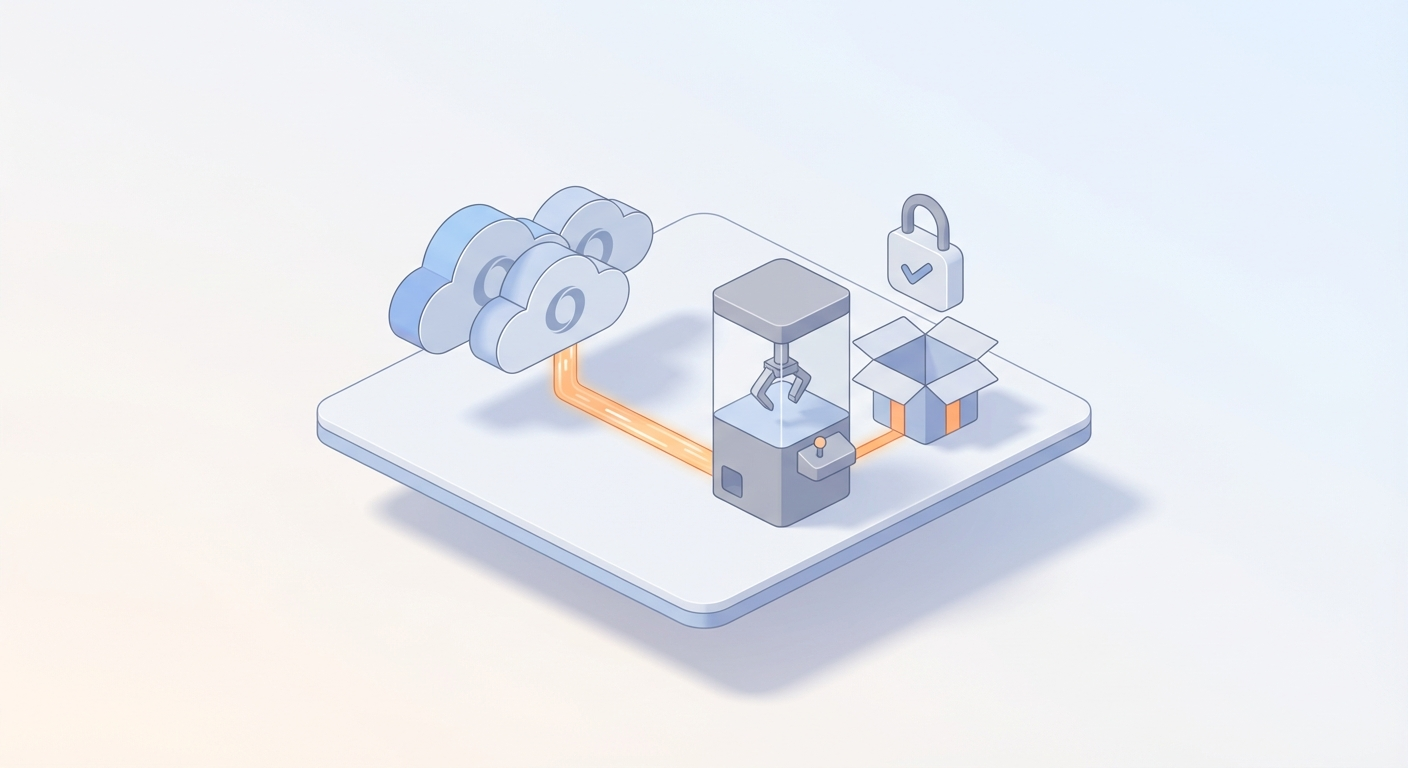
Your AI agent doesn't need a $50/month server. It needs a free one.
Most people hear "deploy a self-hosted AI agent" and immediately think they need to open their wallet. AWS, DigitalOcean, Render — they all want your credit card, and they all start billing you from day one.
But here's what almost nobody talks about: Oracle Cloud gives away ARM servers with 4 CPUs and 24GB of RAM. Forever. No trial period. No gotcha billing after 30 days. Actually free.
And OpenClaw — the open-source platform for building and running AI-powered claw machine agents — runs beautifully on ARM. Which means you can have a fully operational, always-on AI agent running 24/7 without spending a single dollar.
I've done this setup a half-dozen times now. It takes about 45 minutes. Here's the exact playbook.
Why This Combination Works
Let me be specific about what you're getting for free from Oracle Cloud's Always Free Tier:
| Resource | Free Allocation | What It Means for You |
|---|---|---|
| ARM Ampere A1 Compute | 4 OCPUs + 24 GB RAM | More power than most paid VPS plans |
| Block Storage | 200 GB | Plenty for OS, Docker, and all your OpenClaw data |
| Bandwidth | 10 TB/month outbound | You're not hitting this unless you're running a major operation |
| Load Balancer | 1 flexible (10 Mbps) | Free HTTPS termination if you want it |
For context, a comparable DigitalOcean droplet (4 vCPUs, 24GB RAM) runs $96/month. You're getting that for zero.
OpenClaw needs roughly 1-2 CPUs and 4-8GB of RAM for 10-20 concurrent users. That's well within the free allocation, with headroom to spare. You could literally run two OpenClaw instances and still have resources left over.
The ARM architecture isn't an issue either. OpenClaw ships multi-architecture Docker images — ARM64 is a first-class citizen. No emulation, no compatibility layers, no performance penalties. It just works.
Step 1: Create Your Oracle Cloud Account
Go to cloud.oracle.com and click Start for free.
A few things to know before you fill in the form:
Home Region matters. Pick one close to where your users are. US East (Ashburn) or US West (Phoenix) for North America. Frankfurt or Amsterdam for Europe. You can't change this later without creating a new account, so choose wisely.
You need a credit card. Oracle won't charge it for Always Free resources. This is just identity verification. I've had an account for over a year — $0.00 billed every month.
One account per person. They enforce this via phone number and email. Don't try to game it.
The signup takes about 5-10 minutes. Verify your email, verify your phone, accept terms of service, and you're in.
Once you're logged into the console, go to Governance → Limits, Quotas and Usage and confirm you see the VM.Standard.A1.Flex shape available. If it shows up, you're good to go.
Pro tip: ARM instances in the free tier are popular. If you can't provision one immediately, try during off-peak hours (early morning US time) or try a different region. Oracle occasionally runs out of free ARM capacity in popular regions.
Step 2: Spin Up the ARM Instance
Navigate to Compute → Instances → Create Instance.
Here are the exact settings:
Name: openclaw-prod (or whatever you want)
Placement: Leave default (Oracle picks the availability domain)
Image and shape:
- Click Edit → Change image → Select Canonical Ubuntu 22.04 (make sure it says aarch64/ARM64)
- Click Change shape → Ampere → VM.Standard.A1.Flex
- Set OCPUs to 2 and Memory to 12 GB
I recommend starting with 2 OCPUs / 12GB rather than maxing out at 4/24. This leaves you room to spin up a second instance later if you need it — maybe a staging environment, a monitoring stack, or another project entirely.
Networking:
- Create a new VCN or use an existing one
- Make sure you're on a public subnet
- Check Assign a public IPv4 address
SSH Keys:
- If you already have a key pair: Upload your
~/.ssh/id_rsa.pub - If you don't: Let Oracle generate one and download it immediately (you won't get another chance)
Boot volume: Set to 50 GB. That's more than enough and leaves 150 GB of your free block storage for other uses.
Click Create. The instance provisions in 2-5 minutes.
Open the Firewall Ports
This is the step everyone forgets and then spends an hour debugging. Oracle has two firewalls: the cloud-level security list AND the OS-level firewall. You need to open both.
Cloud Security List:
- Go to Networking → Virtual Cloud Networks → click your VCN
- Click your public subnet → click the Security List
- Add Ingress Rules:
| Source CIDR | Protocol | Dest Port | Description |
|---|---|---|---|
| 0.0.0.0/0 | TCP | 22 | SSH |
| 0.0.0.0/0 | TCP | 80 | HTTP |
| 0.0.0.0/0 | TCP | 443 | HTTPS |
Save. We'll handle the OS firewall after we SSH in.
Step 3: SSH In and Prep the Server
ssh -i ~/.ssh/id_rsa ubuntu@<YOUR_PUBLIC_IP>
If you used Oracle's generated key, specify that path instead.
First, update everything and install what we need:
sudo apt update && sudo apt upgrade -y
sudo apt install -y docker.io docker-compose git curl htop ufw
Add your user to the Docker group so you don't need sudo for every Docker command:
sudo usermod -aG docker ubuntu
newgrp docker
Now open the OS-level firewall (this is the second firewall I mentioned):
sudo iptables -I INPUT 6 -m state --state NEW -p tcp --dport 80 -j ACCEPT
sudo iptables -I INPUT 6 -m state --state NEW -p tcp --dport 443 -j ACCEPT
sudo netfilter-persistent save
Oracle's Ubuntu images use iptables rather than ufw by default. The commands above insert the rules in the right position in the chain. If you prefer ufw:
sudo ufw allow 22,80,443/tcp
sudo ufw enable
Either approach works. Just make sure ports 80 and 443 are open.
Step 4: Deploy OpenClaw
This is where it gets fun. OpenClaw uses Docker Compose, which means deployment is essentially: clone, configure, launch.
git clone https://github.com/OpenClaw/openclaw.git
cd openclaw
Configure Your Environment
Copy the example environment file and edit it:
cp .env.example .env
nano .env
The key settings to change:
# Your domain or IP address
DOMAIN=your-domain.com
# Or if you don't have a domain yet:
# DOMAIN=<YOUR_PUBLIC_IP>

# Generate a strong secret for sessions
SECRET_KEY=your-random-string-here

# Database (PostgreSQL is bundled in the compose file)
DATABASE_URL=postgresql://openclaw:openclaw@db:5432/openclaw

# Redis (also bundled)
REDIS_URL=redis://redis:6379
For the SECRET_KEY, generate something random:
openssl rand -hex 32
Launch It
docker-compose up -d
First run takes 3-5 minutes as it pulls images and initializes the database. Watch the logs to make sure everything comes up clean:
docker-compose logs -f
You're looking for the backend service to report it's listening (usually on port 3000 internally). Once you see that, hit http://<YOUR_PUBLIC_IP> in your browser.
You should see the OpenClaw interface. If you do — congratulations, you have a running AI agent platform that's costing you nothing.
Check that all services are healthy:
docker-compose ps
You want to see all containers in Up status. If something's restarting, check its specific logs:
docker-compose logs <service-name>
Step 5: Set Up HTTPS (You Should Do This)
Running on bare HTTP is fine for testing, but if anyone else is going to use this, you need HTTPS. Fortunately, this is free too.
Option A: Caddy (Easiest)
Caddy automatically provisions Let's Encrypt certificates. Install it alongside your OpenClaw stack:
sudo apt install -y debian-keyring debian-archive-keyring apt-transport-https
curl -1sLf 'https://dl.cloudsmith.io/public/caddy/stable/gpg.key' | sudo gpg --dearmor -o /usr/share/keyrings/caddy-stable-archive-keyring.gpg
curl -1sLf 'https://dl.cloudsmith.io/public/caddy/stable/debian.deb.txt' | sudo tee /etc/apt/sources.list.d/caddy-stable.list
sudo apt update
sudo apt install caddy
Create /etc/caddy/Caddyfile:
your-domain.com {
    reverse_proxy localhost:3000
}
sudo systemctl restart caddy
That's it. Caddy handles certificate provisioning, renewal, and HTTPS redirects automatically. Zero maintenance.
Option B: Nginx + Certbot
If you prefer Nginx:
sudo apt install nginx certbot python3-certbot-nginx -y
Create /etc/nginx/sites-available/openclaw:
server {
    listen 80;
    server_name your-domain.com;

    location / {
        proxy_pass http://localhost:3000;
        proxy_http_version 1.1;
        proxy_set_header Upgrade $http_upgrade;
        proxy_set_header Connection "upgrade";
        proxy_set_header Host $host;
        proxy_set_header X-Real-IP $remote_addr;
        proxy_set_header X-Forwarded-For $proxy_add_x_forwarded_for;
        proxy_set_header X-Forwarded-Proto $scheme;
    }
}
The Upgrade and Connection headers are critical — OpenClaw uses WebSockets for real-time agent communication. Without these headers, your agents will connect over HTTP and then immediately drop.
sudo ln -s /etc/nginx/sites-available/openclaw /etc/nginx/sites-enabled/
sudo nginx -t
sudo systemctl restart nginx
sudo certbot --nginx -d your-domain.com
Don't have a domain? Use DuckDNS — free dynamic DNS. Point a subdomain at your Oracle IP, then use that for your certificate.
Step 6: Keep It Running (The Idle Instance Problem)
Here's the one gotcha with Oracle's free tier: instances that appear idle for more than 7 days may be reclaimed. Oracle monitors CPU utilization, and if it stays near zero consistently, they'll stop your instance.
OpenClaw with active agents will generate enough CPU activity on its own. But if you're in a setup phase or have periods of low usage, add a simple keepalive cron job:
crontab -e
Add:
*/30 * * * * curl -s http://localhost > /dev/null 2>&1
*/15 * * * * echo "keepalive" >> /tmp/keepalive.log && find /tmp -name "keepalive.log" -size +1M -delete
This pings your OpenClaw instance every 30 minutes and does a tiny write every 15 minutes. It's enough CPU/IO activity to prevent reclamation.
Docker Compose services restart automatically by default (the restart: unless-stopped policy), so your OpenClaw stack survives server reboots. If you want belt-and-suspenders reliability, create a systemd service:
sudo nano /etc/systemd/system/openclaw.service
[Unit]
Description=OpenClaw
After=docker.service
Requires=docker.service

[Service]
WorkingDirectory=/home/ubuntu/openclaw
ExecStart=/usr/bin/docker-compose up
ExecStop=/usr/bin/docker-compose down
Restart=always
User=ubuntu

[Install]
WantedBy=multi-user.target
sudo systemctl enable openclaw
sudo systemctl start openclaw
Step 7: Configure Your Agents
Now that the infrastructure is running, it's time to actually build something useful.
Access the OpenClaw admin panel at https://your-domain.com/admin (check the docs for default credentials and change them immediately).
From here you can:
- Create new claw machine agents with custom behaviors and strategies
- Upload models and assets through the web interface
- Configure multiplayer — WebSocket support means multiple users can interact with agents simultaneously
- Monitor agent performance in real-time via the dashboard
- Connect Telegram or other integrations for notifications and remote control
The admin panel is where you define what your agents actually do. OpenClaw handles the orchestration, persistence, and real-time communication layer. You define the logic.
If you're building something that needs to respond to external events, OpenClaw's webhook system lets you trigger agent actions from any external service — Zapier, n8n, custom scripts, whatever you're already using.
The Cost Breakdown
Let me spell this out clearly so there's no ambiguity:
| Component | Monthly Cost |
|---|---|
| Oracle ARM Instance (2 OCPU, 12GB RAM) | $0.00 |
| Block Storage (50GB) | $0.00 |
| Bandwidth (up to 10TB) | $0.00 |
| Let's Encrypt SSL | $0.00 |
| DuckDNS Domain | $0.00 |
| OpenClaw License | $0.00 (open source) |
| Total | $0.00 |
This is not a limited trial. This is not "free for 30 days." This runs indefinitely at zero cost as long as you stay within the Always Free limits.
For comparison, running the same setup elsewhere:
- DigitalOcean (4 vCPU, 24GB): $96/month
- AWS EC2 (t4g.xlarge): ~$80/month
- Hetzner (CAX31): €11.49/month (cheapest, but still not free)
What to Do Next
You have a production-grade AI agent platform running on a server that would cost ~$100/month anywhere else, and you're paying nothing.
Here's where to go from here:
-
Browse Claw Mart for pre-built agent templates and configurations you can import directly into your OpenClaw instance. The listings there will save you hours of configuration work.
-
Set up monitoring. Install Portainer for a Docker management UI:
docker run -d -p 9000:9000 --restart=always \ -v /var/run/docker.sock:/var/run/docker.sock \ portainer/portainer-ce -
Back up your data. Use Oracle's free Object Storage (10GB) or a simple cron job that dumps your PostgreSQL database:
0 3 * * * docker exec openclaw-db pg_dump -U openclaw openclaw | gzip > /home/ubuntu/backups/openclaw-$(date +\%Y\%m\%d).sql.gz -
Scale when ready. You have 2 more OCPUs and 12GB of RAM in your free allocation. If your agents get popular, bump the instance up or add a second one.
The whole point is to get your agents running without friction and without cost. Oracle gives you the hardware. OpenClaw gives you the platform. You just need 45 minutes and this guide.
Stop overthinking the infrastructure. Deploy the thing. Make it do something useful. Iterate from there.
Recommended for this post

Voice Companion
Skill
Give your OpenClaw agent a voice — natural speech generation, transcription, and voice messaging across platforms
 Atlas Forge
Felix
Entrepreneur
Your AI CEO — ships products, manages code, handles comms, remembers everything, runs your business
 Felix Craft
26 battle-tested skills for marketing, sales, and growth — your AI becomes a strategic partner
 D'Jasper Probincrux III