PowerPoint Automation: Build Slide Decks with AI
Automate your presentations with AI
Let's be honest about something: nobody has ever finished building a PowerPoint deck and thought, "Wow, that was a great use of my afternoon."
Presentations are one of those tasks that feel productive while you're doing them — you're dragging text boxes, nudging bullet points two pixels to the left, swapping between seventeen shades of blue — but they're actually one of the most spectacular wastes of skilled human time in the modern workplace. You're not thinking. You're not strategizing. You're formatting.
The average professional spends somewhere between 2 and 8 hours building a single deck. For consultants, sales teams, and anyone in a client-facing role, that number multiplies fast. Some people spend 20+ hours a week just making slides. That's half a job dedicated to dragging rectangles around a screen.
Here's the thing: AI can now do about 80% of that work in under five minutes. Not "sort of" do it. Not "give you a rough draft that looks like a middle schooler's book report." Actually produce clean, structured, presentation-ready slides with real content, proper layouts, and even speaker notes.
This post is about how to set that up — specifically, how to build an automated PowerPoint creation workflow using OpenClaw that takes you from "I need a deck" to "Here's your deck" in seconds, not hours.
The Real Problem Isn't PowerPoint — It's the Process
The pain of presentations isn't really about the software. PowerPoint is fine. It's a canvas. The pain is the entire process surrounding it:
- Figuring out what to say. You stare at a blank slide. You outline in your head. You type something. You delete it. You try again.
- Structuring it. How many slides? What order? Title slide, agenda, then what? Do I need a summary slide at the end?
- Writing the content. Bullet points, headers, descriptions, speaker notes. Every slide needs actual words, and those words need to be concise and clear.
- Designing it. Fonts, colors, layout, alignment, images. The aesthetic layer that takes an unreasonable amount of time.
- Iterating. Your boss wants changes. Your client wants a different angle. Back to step one.
Each of those steps is a separate cognitive task, and you're doing all five of them simultaneously while clicking around a GUI that was designed in 2003. It's miserable.
The automation opportunity here isn't just "make it faster." It's about collapsing steps 1 through 4 into a single action — a prompt — and only involving yourself for step 5, the human review and refinement.
What "PowerPoint Automation" Actually Looks Like in 2026
There are several tiers of PowerPoint automation, and they range from "helpful assistant" to "fully autonomous slide factory." Let me break them down quickly so you understand the landscape before we get into building this with OpenClaw.
Tier 1: Native AI (Microsoft Copilot) Microsoft's own Copilot for PowerPoint can generate slides from prompts, add speaker notes, and suggest designs. It's decent. It costs $30/user/month on top of your M365 subscription, and it's locked into the Microsoft ecosystem. If you're already deep in M365, it's worth testing, but it's not particularly customizable and it can't integrate with your other workflows.
Tier 2: AI Presentation Builders (Gamma, Beautiful.ai, Tome) These are standalone tools that generate entire decks from a prompt. Gamma is probably the best of the bunch — the export quality to PPTX is solid, and the AI is surprisingly good at narrative structure. But you're working in their environment, with their templates, and exporting to PowerPoint adds friction and sometimes breaks formatting.
Tier 3: Scripted Automation (Python + AI)
This is where it gets powerful. Using a library like python-pptx combined with an AI model, you can programmatically generate presentations from any data source — CRM exports, spreadsheets, transcripts, databases. It's infinitely customizable, it scales to hundreds of decks, and it can be triggered automatically.
Tier 4: Full Workflow Automation (OpenClaw) This is what I actually recommend for most people, because it gives you the power of Tier 3 without needing to write and maintain Python scripts yourself. You build the agent once, and it handles the entire pipeline: intake, content generation, slide construction, and output. That's what we're going to build.
Building a PowerPoint Automation Agent with OpenClaw
OpenClaw is the platform I'd point you to for this because it lets you build AI-powered automation agents without needing to be a developer — but it also doesn't dumb things down if you want to get technical. You can connect data sources, define workflows, and let the agent handle the repetitive execution.
Here's the workflow we're building:
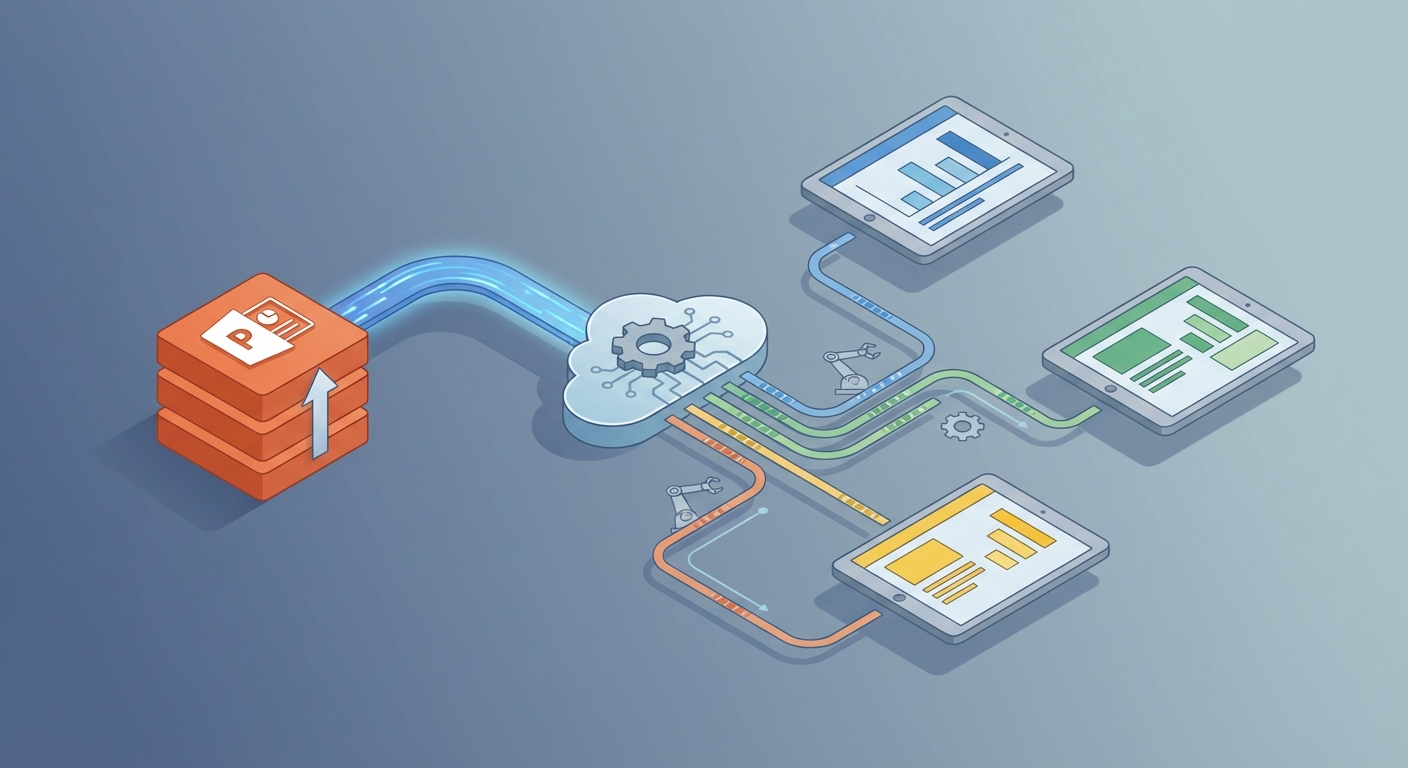
Input: A brief, outline, or raw data (text prompt, meeting notes, CSV, whatever) Process: AI generates slide content, structures the deck, creates speaker notes Output: A finished .pptx file ready for review
Step 1: Define Your Presentation Agent
In OpenClaw, you're going to create an agent whose job is specifically "presentation creation." This isn't a general-purpose chatbot. It's a specialist. The more narrowly you define its role, the better the output.
Your agent's core instructions should include:
- Role: Presentation content architect
- Output format: Structured JSON (title, bullet points, speaker notes, image suggestions per slide)
- Constraints: Maximum 6 bullet points per slide, maximum 8 words per bullet, professional tone, specific to the audience defined in the input
- Structure rules: Always include a title slide, agenda slide, content slides, and a summary/CTA slide
The key insight here is that you're not asking the AI to "make a PowerPoint." You're asking it to generate structured data that can be turned into a PowerPoint. That separation is what makes the output reliable.
Step 2: Craft the Prompt Template
Your agent needs a prompt template that takes in variables and produces consistent output. Here's what a solid one looks like:
You are a presentation architect. Create a structured slide deck based on the following inputs:

TOPIC: {{topic}}
AUDIENCE: {{audience}}
NUMBER OF SLIDES: {{slide_count}}
KEY POINTS TO COVER: {{key_points}}
TONE: {{tone}}

Output a JSON array where each element represents a slide with the following structure:
{
  "slide_number": 1,
  "layout": "title" | "content" | "two_column" | "chart" | "closing",
  "title": "Slide Title",
  "bullets": ["Point 1", "Point 2"],
  "speaker_notes": "What to say when presenting this slide",
  "image_suggestion": "Description of a relevant image or chart"
}

Rules:
- Maximum 5 bullets per slide
- Each bullet under 10 words
- Speaker notes should be conversational, 2-3 sentences
- First slide is always title, second is agenda, last is CTA/summary
- Use data and specifics, not generic filler
This template is reusable across every presentation you'll ever need. Sales deck? Change the variables. Quarterly report? Change the variables. Training presentation? Same template, different inputs.
Step 3: Connect Your Data Sources
This is where OpenClaw really separates itself from the "just use ChatGPT" approach. You can connect your agent to live data sources:
- Google Sheets or Excel files for financial data, metrics, KPIs
- CRM data for sales presentations personalized to specific prospects
- Meeting transcripts (from Otter.ai, Fireflies, etc.) to auto-generate recap decks
- Internal documents for pulling accurate company information
Instead of manually pasting data into a prompt, your OpenClaw agent pulls it automatically. Need a QBR deck? The agent grabs last quarter's numbers from your spreadsheet, structures them into slides, and outputs the deck. You didn't touch a thing.
Step 4: Build the PPTX Output
Once your agent generates the structured JSON, you need to convert it into an actual PowerPoint file. If you're comfortable with a bit of code, here's how the python-pptx integration works — and this can be wrapped into your OpenClaw agent's workflow:
from pptx import Presentation
from pptx.util import Inches, Pt
from pptx.enum.text import PP_ALIGN
import json

def build_pptx(slides_json, output_path="presentation.pptx"):
    prs = Presentation()

    for slide_data in slides_json:
        if slide_data['layout'] == 'title':
            layout = prs.slide_layouts[0]  # Title Slide
            slide = prs.slides.add_slide(layout)
            slide.shapes.title.text = slide_data['title']
            if slide_data.get('bullets'):
                slide.placeholders[1].text = slide_data['bullets'][0]

        elif slide_data['layout'] in ['content', 'two_column']:
            layout = prs.slide_layouts[1]  # Title + Content
            slide = prs.slides.add_slide(layout)
            slide.shapes.title.text = slide_data['title']

            body = slide.placeholders[1]
            tf = body.text_frame
            tf.clear()

            for i, bullet in enumerate(slide_data['bullets']):
                if i == 0:
                    tf.text = bullet
                else:
                    p = tf.add_paragraph()
                    p.text = bullet
                    p.level = 0

        # Add speaker notes
        if slide_data.get('speaker_notes'):
            notes_slide = slide.notes_slide
            notes_slide.notes_text_frame.text = slide_data['speaker_notes']

    prs.save(output_path)
    return output_path
This script takes the JSON your OpenClaw agent produces and builds a real .pptx file with proper slide layouts, bullet formatting, and speaker notes. No manual work. No dragging text boxes. No existential dread.
Step 5: Set Up Triggers
The final piece is making this thing fire automatically. With OpenClaw, you can set triggers so presentations get built without you even initiating the process:
- New deal in CRM → Auto-generate a customized sales deck
- End of quarter → Pull metrics, build QBR presentation
- Meeting transcript uploaded → Generate recap deck and email it to attendees
- New client onboarding → Create a welcome/kickoff presentation
This is the difference between "a tool that helps you make slides" and "a system that makes slides for you." The first saves time. The second eliminates the task entirely.
The Hybrid Approach: Why You Still Matter
I want to be clear about something: AI-generated presentations should not go straight to your audience without human review. Not because the AI is bad — it's actually surprisingly good — but because presentations are a communication tool, and communication requires judgment.
The ideal split is:
- AI handles (80%): Structure, first-draft content, bullet points, speaker notes, layout selection, data formatting
- You handle (20%): Fact-checking data, adjusting tone for the specific audience, adding proprietary visuals or screenshots, making strategic decisions about what to emphasize
This means a deck that used to take you 4 hours now takes about 30 minutes: 5 minutes for the AI to generate it, 25 minutes for you to review and refine. That's a 7.5x speed improvement, and more importantly, you spent those 25 minutes doing actual thinking instead of fighting with text alignment.
Common Mistakes to Avoid
Having built and watched others build these systems, here are the failure modes:
1. Vague prompts produce vague slides. "Make a presentation about our product" will give you generic garbage. "Create a 10-slide sales deck for [Product X] targeting VP-level buyers in healthcare, emphasizing ROI and compliance features, with a competitive comparison on slide 6" will give you something actually useful. Specificity is everything.
2. Skipping the JSON intermediate step. Don't try to have AI generate a .pptx file directly. Always generate structured data first, then convert. The structured data is reviewable, editable, and debuggable. A binary file is not.
3. Ignoring brand consistency.
Set up a master template in PowerPoint with your fonts, colors, and logo placements. Have your python-pptx script use that template as the base (Presentation('template.pptx')). Every generated deck will be on-brand automatically.
4. Over-automating without feedback loops. Build in a review step. Even if it's just a quick scan before the deck gets sent out. Trust the system, but verify the output.
What About the Other Tools?
You might be wondering about Microsoft Copilot, Gamma, or the other tools I mentioned earlier. Here's my honest take:
Microsoft Copilot is fine if you're already paying for M365 and you want something quick and native. But it's a feature inside PowerPoint, not a workflow. It can't pull from your CRM, it can't trigger automatically, and it can't scale to batch operations.
Gamma and Beautiful.ai are great for one-off presentations, especially if design is your weak point. But they're standalone apps, not automation platforms. You're still doing the work manually — just in a prettier interface.
Building with OpenClaw gives you the whole pipeline. It's not just "generate slide content." It's "connect to your data, generate content, build the file, deliver it where it needs to go, and do it again tomorrow without being asked." That's real automation versus a slightly faster manual process.
Browse the Claw Mart listings to find pre-built agents and templates for presentation automation, report generation, and data-driven content creation. There are already agents in there that handle specific use cases like sales decks, investor updates, and training materials — and you can customize them for your workflow.
The Bottom Line
The era of spending hours manually building PowerPoint presentations is over for anyone willing to spend an afternoon setting up the automation. The tools exist. The AI is good enough. The workflow is straightforward.
Here's your action plan:
- Sign up for OpenClaw and create your first presentation agent
- Build your prompt template using the structure above — adapt it for your most common presentation type
- Connect one data source — start with a Google Sheet or CSV that has data you regularly present
- Generate your first deck and compare it to the last one you built manually
- Iterate — refine the prompt, add more data sources, set up triggers
- Browse Claw Mart for pre-built agents that handle your specific use case
You'll get that first afternoon back immediately. Over a month, you're looking at 10-20 hours reclaimed. Over a year, that's an entire month of your working life that you're no longer spending on slide formatting.
Stop dragging text boxes. Start building systems.
Recommended for this post
Your AI agent's guide to creating, editing, and automating PowerPoint presentations
 DMO Geek
Lead Research Engine
Skill
Systematically researches all 50 US states and produces 250-300+ verified, deduplicated B2B leads with a 3-sweep methodology. Not a prompt — a lead generation machine.

The complete playbook for running CRO services for Shopify clients — onboarding to delivery to scaling
 Ezeo
Ezeo