AI Agent for Google Docs: Automate Document Collaboration, Review Workflows, and Content Pipelines
Automate Document Collaboration, Review Workflows, and Content Pipelines
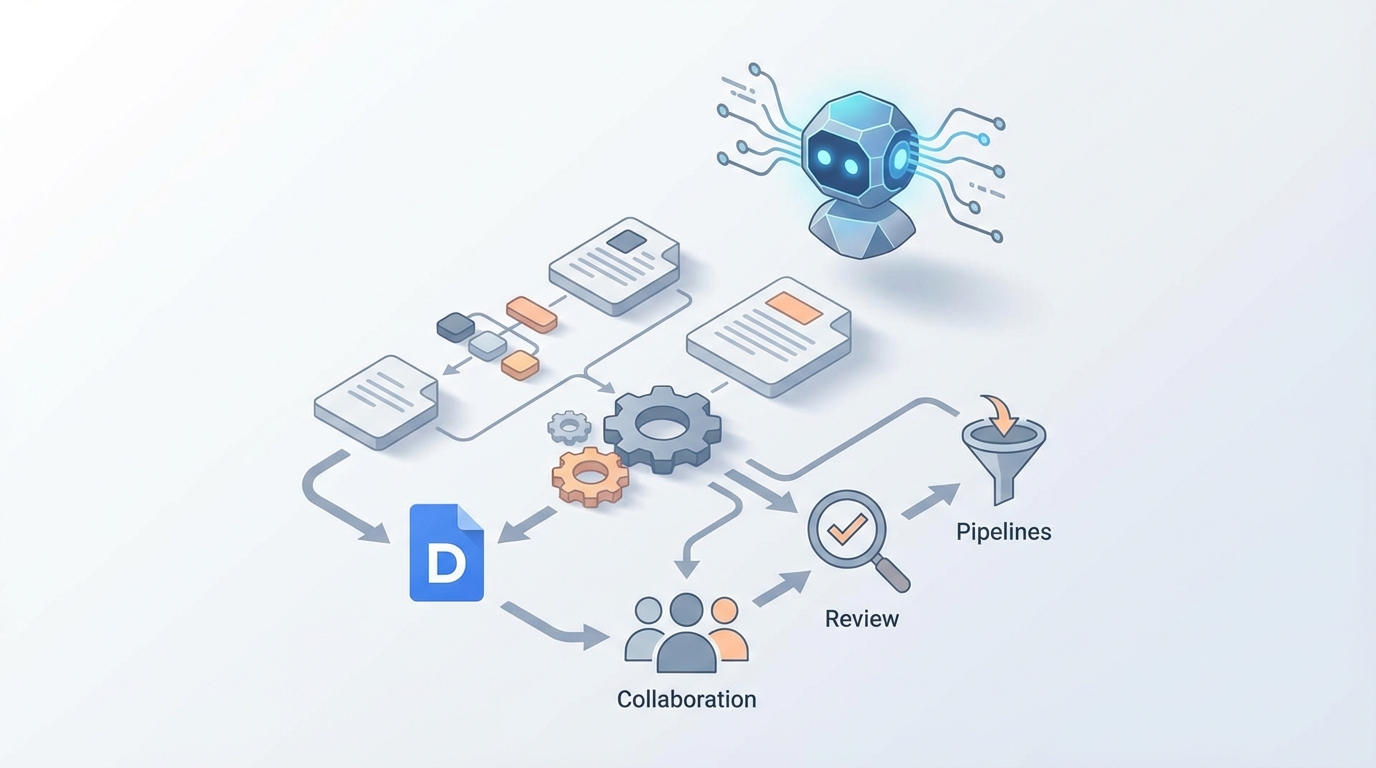
Most teams treat Google Docs like a digital filing cabinet with a chat feature bolted on. You create a doc, share it, people leave comments that go ignored for three weeks, someone eventually copy-pastes the final version into an email, and the whole cycle repeats. The collaborative editing is genuinely good. Everything around it — the workflows, the review cycles, the data extraction, the template management — is held together with duct tape and good intentions.
Apps Script helps, to a point. Then you hit the 6-minute execution limit, or the index math breaks because someone added a paragraph, or the business logic gets complex enough that your script looks like it was written by a raccoon on espresso. And Google's own Gemini features? Fine for "help me brainstorm" prompts. Useless for orchestrating a real document workflow that touches your CRM, enforces your brand guidelines, and routes approvals based on deal size.
This is where a custom AI agent comes in — not Google's AI, not a chatbot summarizer, but an autonomous agent that connects to the Google Docs API and actually does things. Built on OpenClaw, you can wire up an agent that generates documents from templates using live data, reviews drafts against your company's standards, extracts structured information from free-form text, and orchestrates multi-step approval workflows. All without writing brittle Apps Script that breaks every Tuesday.
Let me walk through how this works in practice.
What the Google Docs API Actually Gives You
Before getting into the agent architecture, it's worth understanding what you're working with. The Google Docs API is powerful but low-level. It treats every document as a structured tree — paragraphs, tables, lists, headers, text runs with styling information. You interact with it primarily through batchUpdate() calls that accept dozens of request types: inserting text at specific character indices, updating styles, creating tables, merging cells, adding inline images, manipulating headers and footers.
The critical thing to understand: everything is index-based. If you want to insert text at position 47, and someone else added a sentence before that position, your index is now wrong and your update either fails or lands in the wrong place. This is the single biggest reason Apps Script automations break in production.
You also get the Drive API for file management (copying templates, setting permissions, organizing folders) and the Sheets API for pulling structured data. Any serious document automation combines all three.
What the API does not give you: semantic understanding. It knows there's a paragraph at index 142 with bold text. It has no idea that paragraph is your pricing section, that it contradicts the numbers in your spreadsheet, or that it violates your legal team's approved language. That gap between structure and meaning is exactly what an AI agent fills.
The Architecture: OpenClaw + Google Docs API
OpenClaw lets you build AI agents that have access to tools — meaning they can reason about what needs to happen and then execute API calls to make it happen. Instead of writing a rigid script that does Step 1 → Step 2 → Step 3 regardless of context, you define capabilities and let the agent decide how to use them based on the situation.
Here's the practical setup:
1. Define your tool functions for Google Docs operations:
# Core document tools the agent can invoke

def create_doc_from_template(template_id: str, folder_id: str, title: str) -> str:
    """Copy a template doc and return the new document ID."""
    drive_service = get_drive_service()
    copied = drive_service.files().copy(
        fileId=template_id,
        body={"name": title, "parents": [folder_id]}
    ).execute()
    return copied["id"]

def read_document_content(doc_id: str) -> dict:
    """Read the full document structure and return as parsed content."""
    docs_service = get_docs_service()
    document = docs_service.documents().get(documentId=doc_id).execute()
    return parse_document_tree(document)

def replace_placeholder(doc_id: str, placeholder: str, value: str):
    """Replace a {{placeholder}} with actual content."""
    docs_service = get_docs_service()
    docs_service.documents().batchUpdate(
        documentId=doc_id,
        body={
            "requests": [{
                "replaceAllText": {
                    "containsText": {
                        "text": "{{" + placeholder + "}}",
                        "matchCase": True
                    },
                    "replaceText": value
                }
            }]
        }
    ).execute()

def insert_table_at_marker(doc_id: str, marker: str, rows: list[list[str]]):
    """Find a marker in the doc and replace it with a formatted table."""
    # Find marker index, delete marker text, insert table at that index
    # ... (index calculation and batchUpdate with InsertTableRequest)
    pass

def add_comment(doc_id: str, start_index: int, end_index: int, comment: str):
    """Add a comment to a specific text range in the document."""
    drive_service = get_drive_service()
    drive_service.comments().create(
        fileId=doc_id,
        body={
            "content": comment,
            "anchor": create_anchor(start_index, end_index)
        },
        fields="id"
    ).execute()

def get_sheet_data(spreadsheet_id: str, range_name: str) -> list[list]:
    """Pull data from a Google Sheet."""
    sheets_service = get_sheets_service()
    result = sheets_service.spreadsheets().values().get(
        spreadsheetId=spreadsheet_id,
        range=range_name
    ).execute()
    return result.get("values", [])
2. Register these as tools in your OpenClaw agent:
from openclaw import Agent, Tool

doc_agent = Agent(
    name="doc-workflow-agent",
    instructions="""You are a document operations agent for [Company Name].
    You help create, review, populate, and manage Google Docs based on
    company templates and data sources. You follow brand guidelines stored
    in the knowledge base. When generating content, match the company voice:
    professional but not stiff, specific, no filler. When reviewing documents,
    check for: missing required sections, inconsistent data, tone violations,
    and compliance issues.""",
    tools=[
        Tool(create_doc_from_template),
        Tool(read_document_content),
        Tool(replace_placeholder),
        Tool(insert_table_at_marker),
        Tool(add_comment),
        Tool(get_sheet_data),
    ],
    knowledge_base="company-docs-kb"  # RAG over your existing documents
)
3. Give the agent a knowledge base for context:
This is the part that separates a useful agent from a toy. You feed OpenClaw's knowledge base your brand guidelines, legal-approved language, previous successful proposals, style guides, product documentation — whatever the agent needs to make contextually correct decisions. This uses retrieval-augmented generation (RAG), so when the agent writes or reviews content, it's grounded in your actual company materials, not generic LLM knowledge.
Five Workflows That Actually Save Time
Let me get specific about what you'd actually build with this.
Workflow 1: Automated Report Generation from Live Data
The manual version: Someone opens a Google Sheet, eyeballs the numbers, opens a Doc template, manually types in the figures, formats a table, writes a summary paragraph, and sends it for review. Every week. For every client.
The agent version:
User: "Generate the Q3 client report for Acme Corp using the
quarterly template. Pull data from the Acme metrics sheet.
Flag anything that declined more than 10% from Q2."
The agent:
- Calls
get_sheet_data()to pull Q2 and Q3 numbers from the Acme spreadsheet. - Calls
create_doc_from_template()to copy the quarterly report template. - Calls
replace_placeholder()for each variable — client name, date range, account manager, key metrics. - Computes quarter-over-quarter changes, identifies declines >10%.
- Calls
insert_table_at_marker()to build a formatted data table. - Generates a narrative summary referencing the specific numbers and highlighting the flagged declines.
- Writes the summary into the doc using the Docs API.
Total time: about 45 seconds instead of 40 minutes. And it's consistent every time.
Workflow 2: Multi-Stage Document Review
The manual version: Writer finishes draft → shares with reviewer → reviewer reads, leaves 23 comments → writer addresses comments → re-shares → reviewer re-reads the entire thing → repeat until everyone's tired.
The agent version:
The agent reads the document and performs a structured review against defined criteria:
User: "Review the draft proposal in [doc link]. Check against
our proposal checklist: executive summary present, pricing
matches the approved rate card, case studies are from the last
18 months, legal disclaimers are included, and overall tone
matches our brand voice."
The agent:
- Calls
read_document_content()to ingest the full document. - Retrieves the brand voice guide and proposal checklist from its knowledge base.
- Retrieves the current rate card from the pricing spreadsheet.
- Analyzes section by section — checking structural requirements, comparing pricing against the rate card, verifying case study dates, scanning for required legal language.
- Calls
add_comment()on specific sections with specific feedback: "This case study is from January 2022 — replace with a case study from the last 18 months. Consider the Meridian project (Q2 2026) which has similar scope." - Returns a summary: "7 issues found. 2 critical (pricing mismatch in Section 4, missing legal disclaimer), 3 moderate (outdated case studies), 2 minor (tone inconsistencies in paragraphs 3 and 7)."
This doesn't replace human review. It makes human review dramatically faster because the reviewer only needs to evaluate the agent's findings, not hunt for problems manually.
Workflow 3: Contract Variable Population
The manual version: Paralegal opens a contract template, cross-references the CRM for client details, manually fills in company name (47 occurrences), contract value, payment terms, effective date, governing law jurisdiction, and 30 other variables. Misses one instance of "CLIENT_NAME" on page 14. Every single time.
The agent version:
User: "Generate the MSA for Pinnacle Industries. Standard enterprise
terms, $240k annual value, net-30 payment, California jurisdiction.
Use the v3.2 MSA template."
The agent populates every placeholder, applies conditional logic (enterprise terms trigger different liability caps and SLA sections), and validates that no unreplaced placeholders remain in the document. It can also cross-reference against the CRM to auto-fill company address, signer name, and other details.
Workflow 4: Structured Data Extraction from Documents
This is the reverse workflow, and it's the one most teams don't think about until they need it badly.
The problem: You have 200 meeting notes documents from the last quarter. Leadership wants to know: what were the top 10 requested features across all customer calls? What objections came up most? Which competitors were mentioned?
No human is reading 200 documents to figure that out. The agent can.
User: "Analyze all documents in the 'Q3 Customer Calls' folder.
Extract: feature requests, objections raised, competitors mentioned,
and follow-up actions. Output a summary to a new Google Sheet."
The agent iterates through the folder using the Drive API, reads each document, extracts structured data using its language understanding, and writes the aggregated results to a spreadsheet. What would take an intern two weeks takes the agent about 15 minutes.
Workflow 5: Knowledge Base Maintenance
The problem: Your team wiki in Google Docs is a graveyard of outdated information. The onboarding guide still references a tool you stopped using eight months ago. The product FAQ contradicts the latest release notes.
The agent version: Schedule the agent to periodically scan your knowledge base documents, compare them against your current product documentation and recent announcements, and flag sections that appear outdated or contradictory. It adds comments directly in the docs: "This section references Feature X as 'coming soon' but it shipped in v4.2 on March 15. Recommend updating to reflect current functionality."
Why This Beats Apps Script and Why It Beats Gemini
Apps Script is fine for simple, deterministic automation — replace these five placeholders, format this table, send this email. It falls apart when:
- The logic requires judgment ("Is this section's tone appropriate for an enterprise client?")
- The workflow is conditional in ways that multiply ("If contract value > $100k AND client is in healthcare AND this is a renewal, use Template C with Addendum 2")
- You need to handle variation in input ("Extract the key dates from this document" where every document structures dates differently)
- Maintenance becomes a nightmare because business rules change constantly
Gemini for Workspace, on the other hand, can summarize and draft. But it can't execute multi-step workflows, it doesn't have access to your specific business logic, it can't write data back to Sheets, it can't enforce your approval routing, and it has no memory of your preferences or past documents. It's a copilot for individual tasks, not an agent for workflows.
OpenClaw agents sit in the sweet spot: they combine language understanding with tool execution, grounded in your company's actual knowledge base, capable of multi-step reasoning and action.
Getting Started Without Boiling the Ocean
Don't try to automate everything at once. Pick the workflow that causes the most pain or burns the most hours:
- Identify the repetitive document workflow — usually it's report generation or template population.
- Map the data sources — which Sheets, CRM fields, or other docs feed into this workflow?
- Build the tool functions — wrap your Google Docs/Drive/Sheets API calls as clean functions.
- Set up the OpenClaw agent with those tools and a focused system prompt.
- Load your knowledge base — brand guidelines, templates, approved language, past examples.
- Test with real documents — not toy examples.
- Expand from there — add review workflows, extraction pipelines, cross-document synthesis.
The Google Docs API authentication uses OAuth 2.0 with service accounts for server-to-server or user-delegated credentials for per-user access. You'll need the https://www.googleapis.com/auth/documents and https://www.googleapis.com/auth/drive scopes at minimum.
The Bottom Line
Google Docs is where your team's knowledge lives. But knowledge sitting in documents is only useful if you can act on it efficiently — generate it consistently, review it reliably, extract insights from it, and route it through workflows without manual babysitting.
A custom AI agent built on OpenClaw turns Google Docs from a passive text editor into an active participant in your document workflows. It reads, writes, reviews, extracts, and orchestrates, all grounded in your company's specific context and standards.
If building this in-house isn't the right move for your team right now, Clawsourcing pairs you with specialists who build and deploy OpenClaw agents for exactly these kinds of document automation workflows. They handle the API plumbing, the knowledge base setup, and the agent configuration so you can focus on the work that actually needs a human brain.
Start with one workflow. Measure the time saved. Then expand. That's it.
Recommended for this post
Your SEO specialist that builds content strategies, optimizes pages, and tracks rankings -- own the search results.
 SpookyJuice.ai
Your Claude API expert that optimizes prompts, manages tokens, and builds production AI applications.
SpookyJuice.ai
Scott — Autonomous Prospect Research Agent
Prospect Research Agent
Finds ICP-qualified leads from YC, Product Hunt, IndieHackers, and Twitter. Qualifies every one. Automatically.
 Marco
Marco