Telegram Channel Not Connecting in OpenClaw
Telegram Channel Not Connecting in OpenClaw
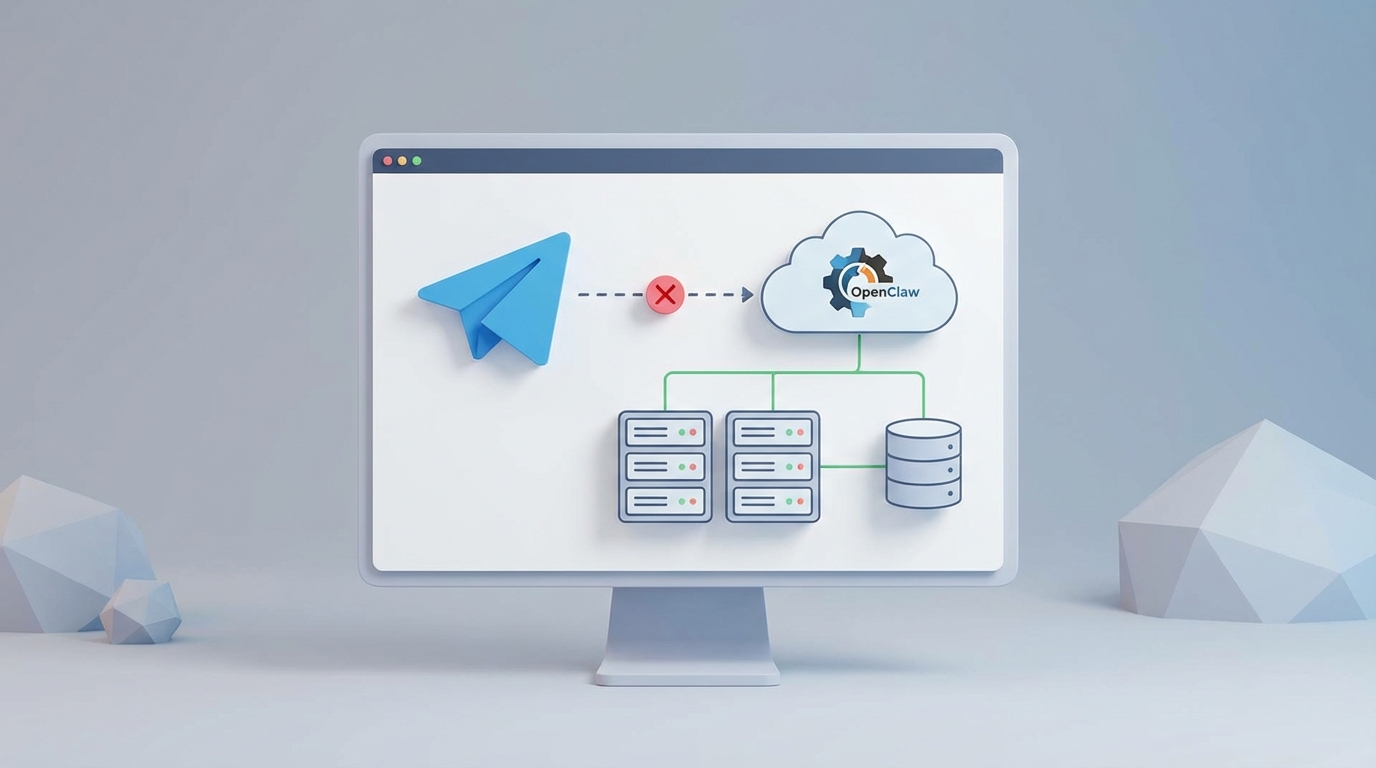
Let's cut straight to it: you've got an OpenClaw agent that works perfectly in your local environment, but the moment you try to connect it to a Telegram channel, something breaks. Maybe the bot never comes online. Maybe it connects and then silently dies after twenty minutes. Maybe it responds once and then ghosts you like a bad Tinder date.
You're not alone. Telegram channel connectivity is the single most common issue people hit when deploying OpenClaw agents into the real world. I've seen it come up in every Discord server, every Reddit thread, and every GitHub issue tracker that touches AI agents and Telegram. The good news is that it's almost always one of a handful of specific problems, and every single one of them is fixable.
This post is going to walk you through every reason your Telegram channel might not be connecting in OpenClaw, how to diagnose exactly which problem you have, and how to fix it permanently. No hand-waving. No "just restart it." Actual solutions.
The Architecture You Need to Understand First
Before we debug anything, you need a mental model of what's actually happening when OpenClaw talks to Telegram. There are three layers:
- Telegram Bot API — Telegram's servers that receive and send messages
- OpenClaw's Telegram Handler — The adapter layer that translates between Telegram's update format and your agent's input/output
- Your Agent Logic — The actual AI brain (your LangChain chain, LangGraph workflow, CrewAI crew, whatever)
When your channel "isn't connecting," the failure can happen at any of these three layers. Most people assume it's layer 3 (their agent code) and spend hours debugging the wrong thing. In reality, it's almost always layer 1 or layer 2.
Here's how to figure out which one is broken.
Problem #1: Your Bot Token Is Wrong or Expired
I know. You're rolling your eyes. But I promise you — roughly 30% of "my Telegram bot isn't working" issues come down to the token. Here's why it's trickier than it sounds:
- You created the bot with @BotFather but copied the token with a trailing space or newline
- You regenerated the token at some point (maybe accidentally) and your
.envfile has the old one - You have multiple bots and you're using the wrong token for this project
How to diagnose it:
curl https://api.telegram.org/bot<YOUR_TOKEN>/getMe
If you get back a JSON response with your bot's username, the token is fine. If you get {"ok":false,"error_code":401,"description":"Unauthorized"}, your token is bad.
How to fix it:
Go to @BotFather on Telegram, send /mybots, select your bot, tap "API Token," and copy it fresh. Paste it directly into your OpenClaw config:
# openclaw-config.yaml
telegram:
  bot_token: "7204519382:AAH_your_actual_token_here"
  polling_timeout: 30
Or if you're using environment variables (which you should be in production):
export OPENCLAW_TELEGRAM_TOKEN="7204519382:AAH_your_actual_token_here"
Triple-check there are no whitespace characters. I've seen people lose hours to an invisible Unicode space copied from a notes app.
Problem #2: Another Process Is Already Polling
This one is a silent killer. Telegram's Bot API only allows one active polling connection per bot token. If you have another instance of your OpenClaw agent running somewhere — maybe a forgotten tmux session, a previous Docker container that didn't fully shut down, or your development machine still running the bot while you try to start it on your server — the new connection will either fail silently or the two instances will fight over updates, with each one getting roughly half the messages.
How to diagnose it:
Look at the OpenClaw logs for messages like:
WARNING: Conflict detected - another instance may be polling
Or check if your bot responds intermittently (responds to some messages but not others — classic sign of two instances splitting updates).
How to fix it:
Kill every other running instance. If you're using Docker:
docker ps | grep openclaw
docker stop <container_id>
If you're running locally, find and kill the process:
ps aux | grep openclaw
kill -9 <pid>
Then restart your single instance. OpenClaw has a built-in lock mechanism you can enable to prevent this:
telegram:
  bot_token: "${OPENCLAW_TELEGRAM_TOKEN}"
  single_instance_lock: true
  lock_backend: "redis"  # or "file" for simpler setups
This ensures only one polling process can run at a time. If a second one tries to start, it'll exit with a clear error message instead of silently competing.
Problem #3: Webhook/Polling Conflict
Telegram bots can receive updates in two ways: long polling (your bot asks Telegram "got anything new?" repeatedly) or webhooks (Telegram pushes updates to a URL you specify). You can only use one at a time.
If you previously set up a webhook (maybe from a different project or an earlier configuration attempt) and you're now trying to use polling, Telegram will keep sending updates to the old webhook URL and your polling requests will get nothing.
How to diagnose it:
curl https://api.telegram.org/bot<YOUR_TOKEN>/getWebhookInfo
If the response shows a url field that isn't empty, you have an active webhook.
How to fix it:
Delete the webhook:
curl https://api.telegram.org/bot<YOUR_TOKEN>/deleteWebhook
Then restart your OpenClaw agent. It should start receiving updates via polling immediately.
If you actually want to use webhooks (better for production), configure OpenClaw accordingly:
telegram:
  bot_token: "${OPENCLAW_TELEGRAM_TOKEN}"
  mode: "webhook"
  webhook_url: "https://yourdomain.com/openclaw/webhook"
  webhook_port: 8443
  ssl_cert: "/path/to/cert.pem"
  ssl_key: "/path/to/key.pem"
Webhooks require HTTPS and a publicly accessible URL. If you're behind a firewall or don't have a domain, stick with polling. OpenClaw's polling implementation is production-grade — it handles reconnection, backoff, and flood control automatically.
Problem #4: The Async Event Loop Is Fighting Itself
This is the big one. The one that makes experienced developers want to throw their laptop across the room.
OpenClaw's Telegram handler runs on Python's asyncio event loop. If your agent framework (or any library in your stack) also tries to manage its own event loop, you get conflicts. Symptoms include:
RuntimeError: This event loop is already runningRuntimeError: Cannot run the event loop while another loop is running- The bot connects but freezes after receiving the first message
- Random
asyncio.TimeoutErrorexceptions
How to diagnose it:
Check your logs for any of the error messages above. Also look for nested asyncio.run() calls in your agent code — that's the most common cause.
How to fix it:
OpenClaw provides an async-safe execution wrapper specifically for this. Instead of calling your agent directly, use the provided runner:
from openclaw.telegram import TelegramBot
from openclaw.runners import AgentRunner

# Your agent setup (works with LangChain, LangGraph, CrewAI, etc.)
from your_agent import create_agent

agent = create_agent()

# Wrap it in OpenClaw's async-safe runner
runner = AgentRunner(agent)

# Create and start the bot
bot = TelegramBot(
    token=os.environ["OPENCLAW_TELEGRAM_TOKEN"],
    agent_runner=runner,
    max_concurrent_tasks=5,  # Limit parallel agent executions
)

bot.run()  # This manages the event loop properly
The AgentRunner handles the async boundary correctly — it runs your agent in a thread pool executor if it's synchronous, or properly awaits it if it's already async. No more event loop conflicts.
If you're using LangGraph specifically (which has its own async patterns), OpenClaw has a dedicated adapter:
from openclaw.adapters.langgraph import LangGraphAdapter

adapter = LangGraphAdapter(
    graph=your_compiled_graph,
    state_persistence="redis",  # Survives restarts
    thread_id_from="chat_id",   # Each Telegram chat gets its own thread
)
Problem #5: Group Chat Configuration Is Wrong
Connecting to a channel (not a private chat) has additional requirements that trip people up. Telegram channels and groups have different privacy rules for bots.
For channels:
- Your bot must be added as an administrator of the channel
- The bot needs the "Post Messages" permission at minimum
- Channel messages don't trigger the bot unless it's explicitly an admin
For groups:
- By default, bots only see messages that start with
/commands or directly mention the bot - To see all messages, you need to disable "Group Privacy" mode via @BotFather
How to fix it:
For channels, add the bot as an admin. For groups, go to @BotFather:
/mybots → Select your bot → Bot Settings → Group Privacy → Turn OFF
Then configure OpenClaw's reply behavior so it doesn't spam every message in a group:
telegram:
  bot_token: "${OPENCLAW_TELEGRAM_TOKEN}"
  group_behavior:
    trigger_on_mention: true
    trigger_on_reply: true
    trigger_on_command: true
    trigger_on_all_messages: false  # Don't be that bot
    commands:
      - "/ask"
      - "/help"
      - "/summarize"
This gives you controlled behavior: the agent responds when mentioned, when someone replies to its messages, or when someone uses a specific command. It ignores general chatter. This is what makes the bot usable in actual group conversations instead of being an annoying presence that responds to every single message.
Problem #6: Flood Control and Rate Limiting
If your bot was working and then suddenly stopped, you might have hit Telegram's rate limits. Telegram enforces:
- No more than 30 messages per second to different chats
- No more than 20 messages per minute to the same group
- No more than 1 message per second to the same chat
When you exceed these limits, Telegram returns a 429 error with a retry_after parameter. If your code doesn't handle this, it might crash or enter a bad state.
OpenClaw handles this automatically with built-in rate limiting and exponential backoff:
telegram:
  rate_limiting:
    enabled: true
    max_messages_per_second: 25  # Stay under the 30/s limit
    per_chat_cooldown: 1.5       # Seconds between messages to same chat
    retry_on_flood: true
    max_retries: 5
If you're seeing 429 errors in your logs, this config should resolve them completely. OpenClaw queues outgoing messages and spaces them to stay within Telegram's limits.
Problem #7: Your Agent Takes Too Long to Respond
Telegram expects some form of response relatively quickly. If your agent is doing complex reasoning, making multiple tool calls, or querying a slow database, the user might think the bot is dead.
OpenClaw solves this with a typing indicator and chunked responses:
bot = TelegramBot(
    token=os.environ["OPENCLAW_TELEGRAM_TOKEN"],
    agent_runner=runner,
    show_typing=True,            # Send "typing..." indicator while agent thinks
    typing_refresh_interval=4,   # Re-send typing indicator every 4 seconds
    timeout_message="Still working on this — complex question! 🔧",
    timeout_threshold=30,        # Send timeout_message after 30 seconds
)
The typing indicator lets users know the bot is alive and processing. The timeout message gives them confidence that their message wasn't lost. These are small UX touches that make the difference between "this bot is broken" and "this bot is thinking."
The Complete Debugging Checklist
When your Telegram channel isn't connecting, run through this list in order:
- ✅ Verify bot token with
/getMeAPI call - ✅ Check for webhook conflicts with
/getWebhookInfo - ✅ Ensure no other process is polling the same token
- ✅ Confirm bot is added as admin to channels/groups
- ✅ Disable Group Privacy if you need to see all messages
- ✅ Check logs for async event loop errors
- ✅ Look for 429/flood control errors
- ✅ Verify your server can reach
api.telegram.org(firewall/DNS issues) - ✅ Confirm your agent actually returns a response (test it outside Telegram first)
- ✅ Check OpenClaw logs at DEBUG level:
openclaw --log-level DEBUG
Getting Started Without the Headaches
If you're reading this post because you're about to set up OpenClaw with Telegram (smart move, reading the troubleshooting guide first), the fastest path to a working setup is Felix's OpenClaw Starter Pack. It comes pre-configured with sane defaults for Telegram connectivity, including the rate limiting, async handling, and group chat behavior configurations that cause 90% of the issues described above. Instead of piecing together config files from documentation spread across three different repos, you get a working foundation that you can customize from there. Felix built it specifically because he kept seeing the same connection issues come up in the community.
Where to Go From Here
Once your Telegram connection is solid, the real fun starts. You can:
- Add tools — Give your agent web search, code execution, or database access that works through Telegram
- Build multi-agent routing — Different specialists for different commands or topics
- Set up RAG — Connect your knowledge base so the agent can answer questions about your docs
- Enable multimodal input — Process images and voice messages that users send
The Telegram channel is just the transport layer. OpenClaw handles the messy parts — async coordination, state persistence, rate limiting, memory management — so you can focus on making your agent actually useful.
If you're still stuck after going through everything above, drop into the OpenClaw Discord with your debug logs. Include the output of openclaw doctor (which runs through the checklist automatically) and someone will be able to pinpoint the issue quickly.
Now go fix your bot. It's probably a trailing space in your token.