How to Connect Telegram to OpenClaw Agent
How to Connect Telegram to OpenClaw Agent
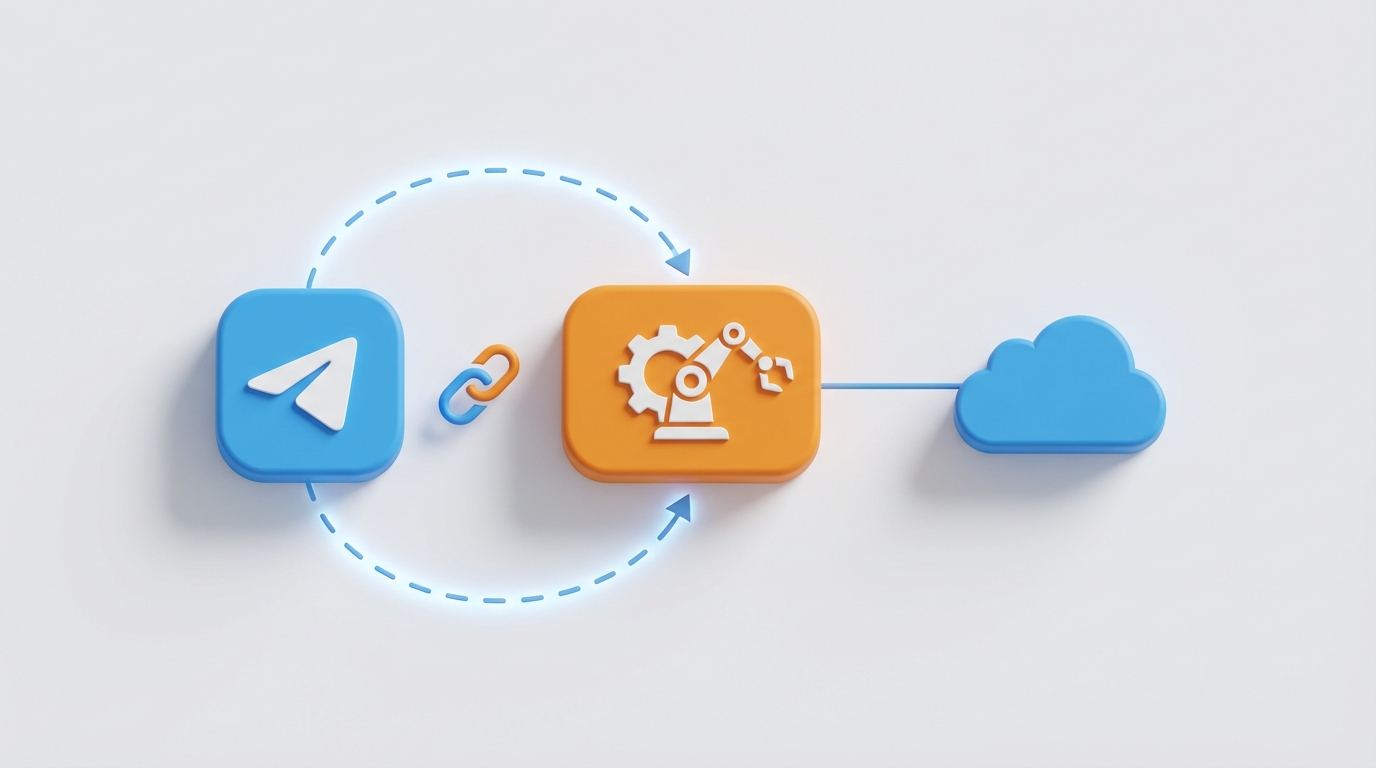
Look, I'm going to save you about four hours of frustration. Connecting Telegram to your OpenClaw agent should be straightforward, and it is straightforward — once you know the exact sequence. But if you're fumbling through it blind, you're going to hit three or four walls that make you question why you started this project in the first place.
I've set this up more times than I can count at this point. For personal assistants, for research bots, for customer-facing tools, for weird side projects that probably shouldn't exist. Every time, the core process is the same, and every time, the same handful of gotchas trip people up.
So here's the whole thing, start to finish. No filler.
Why Telegram + OpenClaw Is the Move
Before we get into the how, let's talk about the why for a second — because there are a dozen messaging platforms you could hook an AI agent up to, and most of them are worse than Telegram for this purpose.
Telegram gives you a few things that matter enormously when you're running an AI agent on the other end:
No message length anxiety. Telegram supports messages up to 4,096 characters, and you can chain them. When your OpenClaw agent returns a detailed research summary or a multi-step plan, you're not getting truncated into oblivion like you would on some platforms.
Rich interaction primitives. Inline keyboards, reply markups, message editing, topics in supergroups — these aren't gimmicks. They're how you build actual usable agent interfaces. Your OpenClaw agent can present options, ask for confirmation before expensive operations, and let users steer multi-step workflows without typing commands like it's 1995.
Bot API that's actually good. Telegram's Bot API is mature, well-documented, and fast. Webhook support works cleanly. Long polling works cleanly. You're not fighting the platform.
Privacy-forward users. The people on Telegram tend to be more technical, more privacy-conscious, and more tolerant of beta-quality experiences. Perfect audience for an AI agent that's still being refined.
OpenClaw, meanwhile, is where you're building the actual brain — the agent logic, the skills, the tool integrations, the memory. Telegram is just the interface layer. The power is in what your OpenClaw agent can actually do once the messages start flowing.
Step 1: Create Your Telegram Bot
If you've done this before, skip ahead. If not, here's the deal:
-
Open Telegram and search for @BotFather. This is Telegram's official bot for creating and managing bots. Yes, a bot that makes bots. We live in the future.
-
Send
/newbotto BotFather. -
It'll ask you for a display name. Pick whatever you want. "My OpenClaw Agent" works fine.
-
It'll ask for a username. This has to end in
bot. Something likemy_openclaw_agent_bot. It needs to be globally unique, so get creative if your first choice is taken. -
BotFather responds with your HTTP API token. It looks something like this:
7204815933:AAH3kf9Jx_Rv2bMEfLz8QpWnXkV4hTm6sYo
Guard this token with your life. Anyone with this token controls your bot. Don't commit it to GitHub. Don't paste it in a Discord chat. Don't put it in a .env file that's not in your .gitignore. I've seen people accidentally expose these tokens in screenshots posted to Reddit. Don't be that person.
- While you're chatting with BotFather, send
/setdescriptionand/setabouttextto give your bot proper descriptions. This matters more than you think — users who encounter your bot will decide whether to interact based on these.
Quick config I also recommend right away:
/setcommands
Then paste something like:
start - Start a conversation
help - Show available commands
reset - Clear conversation memory
stop - Cancel the current task
These give users a clean command menu when they tap the "/" button in the chat.
Step 2: Set Up Your OpenClaw Agent
This is where the actual intelligence lives. Your Telegram bot is just a messenger — OpenClaw is the brain.
In your OpenClaw workspace, you need an agent configured with:
- The skills you want it to have. Web search, document analysis, code generation, whatever your use case demands. Each skill is a tool the agent can invoke when processing a user's request.
- A system prompt that accounts for the Telegram context. This matters more than people realize. Your agent needs to know it's talking to users through a chat interface, that responses should be conversational rather than essay-length, and that it can use Markdown formatting (Telegram supports a subset of Markdown in messages).
- Memory configuration. You want conversation persistence so users aren't repeating themselves every message.
Here's a system prompt template that works well for Telegram-deployed agents:
You are a helpful assistant communicating through Telegram. Keep responses
concise and conversational. Use Telegram-compatible Markdown for formatting:
*bold*, _italic_, `code`, ```code blocks```.

When a task requires multiple steps, briefly explain what you're about to do
before doing it. If a task will take significant time, acknowledge the request
immediately.

If the user's request is ambiguous, ask a clarifying question rather than
guessing. Keep clarifying questions short and specific.

When presenting options or recommendations, use numbered lists so the user
can respond by number.
The key thing is getting your skills configured properly. This is where most people either spend way too long doing it manually or get it wrong because they misconfigure tool parameters.
Here's my honest recommendation: if you don't want to spend an afternoon wrestling with skill configurations, Felix's OpenClaw Starter Pack on Claw Mart is $29 and comes with pre-configured skills that are already tested and tuned for exactly this kind of deployment. I used it when I set up my second and third agents because I'd already burned enough hours configuring everything from scratch the first time around. The pre-built skills just work, and you can customize them after the fact. It's the fastest way to go from zero to a working OpenClaw agent, no question.
Step 3: The Bridge — Connecting Telegram to OpenClaw
This is where the magic happens and where most people get stuck. You need a service that receives messages from Telegram, passes them to your OpenClaw agent, and sends the responses back.
Here's a clean Python implementation using python-telegram-bot (the async version, which you should always use):
import os
import logging
from telegram import Update
from telegram.ext import (
    Application,
    CommandHandler,
    MessageHandler,
    filters,
    ContextTypes,
)
from openclaw import OpenClawClient

# Configuration
TELEGRAM_TOKEN = os.environ["TELEGRAM_TOKEN"]
OPENCLAW_API_KEY = os.environ["OPENCLAW_API_KEY"]
OPENCLAW_AGENT_ID = os.environ["OPENCLAW_AGENT_ID"]

# Initialize OpenClaw client
claw = OpenClawClient(api_key=OPENCLAW_API_KEY)

# Store conversation IDs mapped to Telegram chat IDs
conversations = {}

logging.basicConfig(level=logging.INFO)
logger = logging.getLogger(__name__)


async def start(update: Update, context: ContextTypes.DEFAULT_TYPE):
    """Handle /start command."""
    chat_id = update.effective_chat.id
    # Create a new OpenClaw conversation
    conversation = claw.conversations.create(agent_id=OPENCLAW_AGENT_ID)
    conversations[chat_id] = conversation.id

    await update.message.reply_text(
        "Hey! I'm ready to help. Ask me anything.\n\n"
        "Commands:\n"
        "/reset - Start a fresh conversation\n"
        "/stop - Cancel a running task"
    )


async def reset(update: Update, context: ContextTypes.DEFAULT_TYPE):
    """Handle /reset command - clear conversation memory."""
    chat_id = update.effective_chat.id
    conversation = claw.conversations.create(agent_id=OPENCLAW_AGENT_ID)
    conversations[chat_id] = conversation.id
    await update.message.reply_text("Memory cleared. Fresh start.")


async def handle_message(update: Update, context: ContextTypes.DEFAULT_TYPE):
    """Handle incoming text messages."""
    chat_id = update.effective_chat.id
    user_message = update.message.text

    # Ensure we have a conversation for this chat
    if chat_id not in conversations:
        conversation = claw.conversations.create(agent_id=OPENCLAW_AGENT_ID)
        conversations[chat_id] = conversation.id

    # Show typing indicator
    await update.effective_chat.send_action("typing")

    try:
        # Send message to OpenClaw agent
        response = await claw.conversations.send_message(
            conversation_id=conversations[chat_id],
            message=user_message,
        )

        # Send the response back to Telegram
        reply_text = response.content

        # Telegram has a 4096 char limit per message
        if len(reply_text) <= 4096:
            await update.message.reply_text(
                reply_text,
                parse_mode="Markdown"
            )
        else:
            # Split into chunks
            chunks = [reply_text[i:i+4096] for i in range(0, len(reply_text), 4096)]
            for chunk in chunks:
                await update.message.reply_text(chunk, parse_mode="Markdown")

    except Exception as e:
        logger.error(f"Error processing message: {e}")
        await update.message.reply_text(
            "Something went wrong processing that. Try again, "
            "or /reset to start fresh."
        )


def main():
    """Start the bot."""
    app = Application.builder().token(TELEGRAM_TOKEN).build()

    app.add_handler(CommandHandler("start", start))
    app.add_handler(CommandHandler("reset", reset))
    app.add_handler(MessageHandler(filters.TEXT & ~filters.COMMAND, handle_message))

    # Use webhooks in production, polling for development
    logger.info("Bot starting...")
    app.run_polling(drop_pending_updates=True)


if __name__ == "__main__":
    main()
Key things happening here:
- Every Telegram chat gets mapped to an OpenClaw conversation. This is how memory persists — your agent remembers what was said earlier in the chat because it's the same conversation thread in OpenClaw.
- The typing indicator fires immediately so the user knows the bot is working. This is critical UX. Without it, users spam-click their message or assume the bot is dead.
- Long responses get chunked at the 4,096 character boundary. Crude but effective.
- Errors get caught and surfaced to the user with an actionable suggestion (try again or reset).
Step 4: Handle the Latency Problem
Here's where most Telegram + AI agent setups fall apart: your OpenClaw agent might take 15, 30, even 60+ seconds to respond if it's running a multi-step workflow with tool calls. The typing indicator helps, but it's not enough for anything beyond about 10 seconds.
The proper solution is a background task architecture. Here's the upgraded version:
import asyncio

async def handle_message(update: Update, context: ContextTypes.DEFAULT_TYPE):
    """Handle incoming messages with background processing."""
    chat_id = update.effective_chat.id
    user_message = update.message.text

    if chat_id not in conversations:
        conversation = claw.conversations.create(agent_id=OPENCLAW_AGENT_ID)
        conversations[chat_id] = conversation.id

    # Immediately acknowledge
    status_msg = await update.message.reply_text("⏳ Working on it...")

    # Keep typing indicator alive
    async def keep_typing():
        while True:
            try:
                await update.effective_chat.send_action("typing")
                await asyncio.sleep(4)  # Typing indicator lasts ~5s
            except asyncio.CancelledError:
                break

    typing_task = asyncio.create_task(keep_typing())

    try:
        response = await claw.conversations.send_message(
            conversation_id=conversations[chat_id],
            message=user_message,
        )

        typing_task.cancel()

        # Edit the status message with the actual response
        reply_text = response.content
        if len(reply_text) <= 4096:
            await status_msg.edit_text(reply_text, parse_mode="Markdown")
        else:
            await status_msg.edit_text(reply_text[:4096], parse_mode="Markdown")
            remaining = reply_text[4096:]
            chunks = [remaining[i:i+4096] for i in range(0, len(remaining), 4096)]
            for chunk in chunks:
                await update.message.reply_text(chunk, parse_mode="Markdown")

    except Exception as e:
        typing_task.cancel()
        logger.error(f"Error: {e}")
        await status_msg.edit_text("❌ Something went wrong. /reset to start over.")
The key improvements: immediate acknowledgment (user sees "Working on it..." right away), persistent typing indicator that refreshes every 4 seconds, and the status message gets edited with the final response rather than sending a new message. This looks clean in the chat instead of cluttered.
Step 5: Persistent State (Don't Lose Conversations)
That conversations = {} dictionary? It's stored in RAM. Your server restarts, you lose everything. Every user starts over.
For production, swap it with something persistent:
import json
import redis

r = redis.Redis(host="localhost", port=6379, db=0)

def get_conversation_id(chat_id: int) -> str | None:
    """Get existing OpenClaw conversation ID for a Telegram chat."""
    result = r.get(f"tg_conv:{chat_id}")
    return result.decode() if result else None

def set_conversation_id(chat_id: int, conversation_id: str):
    """Store OpenClaw conversation ID for a Telegram chat."""
    r.set(f"tg_conv:{chat_id}", conversation_id, ex=86400 * 7)  # 7 day TTL
Redis is the simplest option. SQLite works too if you're on a single server. The point is: don't rely on in-memory state for anything you care about keeping.
Step 6: Deploy It Properly
For development, run_polling() is fine. For production, use webhooks:
app.run_webhook(
    listen="0.0.0.0",
    port=8443,
    url_path=TELEGRAM_TOKEN,  # Use token as path for obscurity
    webhook_url=f"https://yourdomain.com/{TELEGRAM_TOKEN}",
)
Good hosting options, roughly in order of hassle:
- Railway — easiest, push and go, starts at $5/month
- Render — similar, slightly more control
- A $5 VPS (Hetzner, DigitalOcean) — more work, more control, better for long-running processes
- AWS Lambda + API Gateway — overkill for most, but scales to zero
Whichever you pick, set these environment variables:
TELEGRAM_TOKEN=your_bot_token_here
OPENCLAW_API_KEY=your_openclaw_api_key
OPENCLAW_AGENT_ID=your_agent_id
REDIS_URL=redis://localhost:6379  # if using Redis
Security: The Stuff Nobody Does Until It's Too Late
Quick checklist. Do all of these:
-
.envfile is in.gitignore - Bot token is never hardcoded in source
- You've restricted which Telegram user IDs can use the bot (unless it's intentionally public)
- You've set a max iterations / token budget on your OpenClaw agent so it can't spiral into a $200 afternoon
- You have logging that captures errors but not full message content (privacy)
That user restriction bit is important. Here's a simple allowlist:
ALLOWED_USERS = {123456789, 987654321}  # Your Telegram user IDs

async def handle_message(update: Update, context: ContextTypes.DEFAULT_TYPE):
    if update.effective_user.id not in ALLOWED_USERS:
        await update.message.reply_text("Sorry, this bot is private.")
        return
    # ... rest of handler
You can find your Telegram user ID by messaging @userinfobot.
Common Failures and How to Fix Them
"Bot shows typing but never responds." Your OpenClaw agent call is probably timing out or throwing an error that's getting silently swallowed. Add proper error logging. Check your OpenClaw dashboard for failed runs.
"Bot responds but the formatting is broken."
Telegram's Markdown parser is strict and different from standard Markdown. Unmatched asterisks or underscores will cause the entire message to fail to render. Wrap your reply_text call in a try/except and fall back to plain text:
try:
    await update.message.reply_text(reply_text, parse_mode="Markdown")
except Exception:
    await update.message.reply_text(reply_text)  # Plain text fallback
"Conversations reset randomly." Your server is restarting and you're using in-memory state. See Step 5 above. Use Redis or a database.
"Bot works locally but not when deployed."
90% chance it's a webhook configuration issue. Make sure your domain has valid SSL (Let's Encrypt is free), the port matches, and the webhook URL is accessible from the internet. Use https://api.telegram.org/bot<TOKEN>/getWebhookInfo to debug.
"Agent enters an infinite loop and burns through API credits."
Set a max iterations limit on your OpenClaw agent. Most agent frameworks support this. Also consider adding a /stop command that cancels the current task.
Where to Go From Here
Once you have the basic connection working, the interesting stuff starts:
-
Add inline keyboards for agent interactions. When your OpenClaw agent wants to present options, render them as Telegram buttons instead of a numbered list. Way better UX.
-
Support file uploads. Users can send documents, images, and voice messages to Telegram bots. Forward these to your OpenClaw agent's document analysis or vision skills.
-
Group chat support. Deploy your agent in a Telegram group where it responds when mentioned. Great for team assistants.
-
Scheduled tasks. Have your agent proactively message users with daily summaries, monitoring alerts, or research updates.
The foundation we built here — Telegram bot → OpenClaw agent with persistent conversations, proper latency handling, and clean error management — supports all of these extensions without major refactoring.
And again, if you want to skip the initial skill configuration headache and start with something that's already tuned and tested, check out Felix's OpenClaw Starter Pack on Claw Mart. Twenty-nine bucks to save yourself a few hours of trial-and-error on skill setup is a trade I'd make every time. You can always customize everything later once you see how it's wired together.
Now go build something. The setup takes maybe 30 minutes if you follow these steps linearly. The fun part is what your agent actually does once it's live.