How to Build Your First Personal Assistant with OpenClaw
How to Build Your First Personal Assistant with OpenClaw
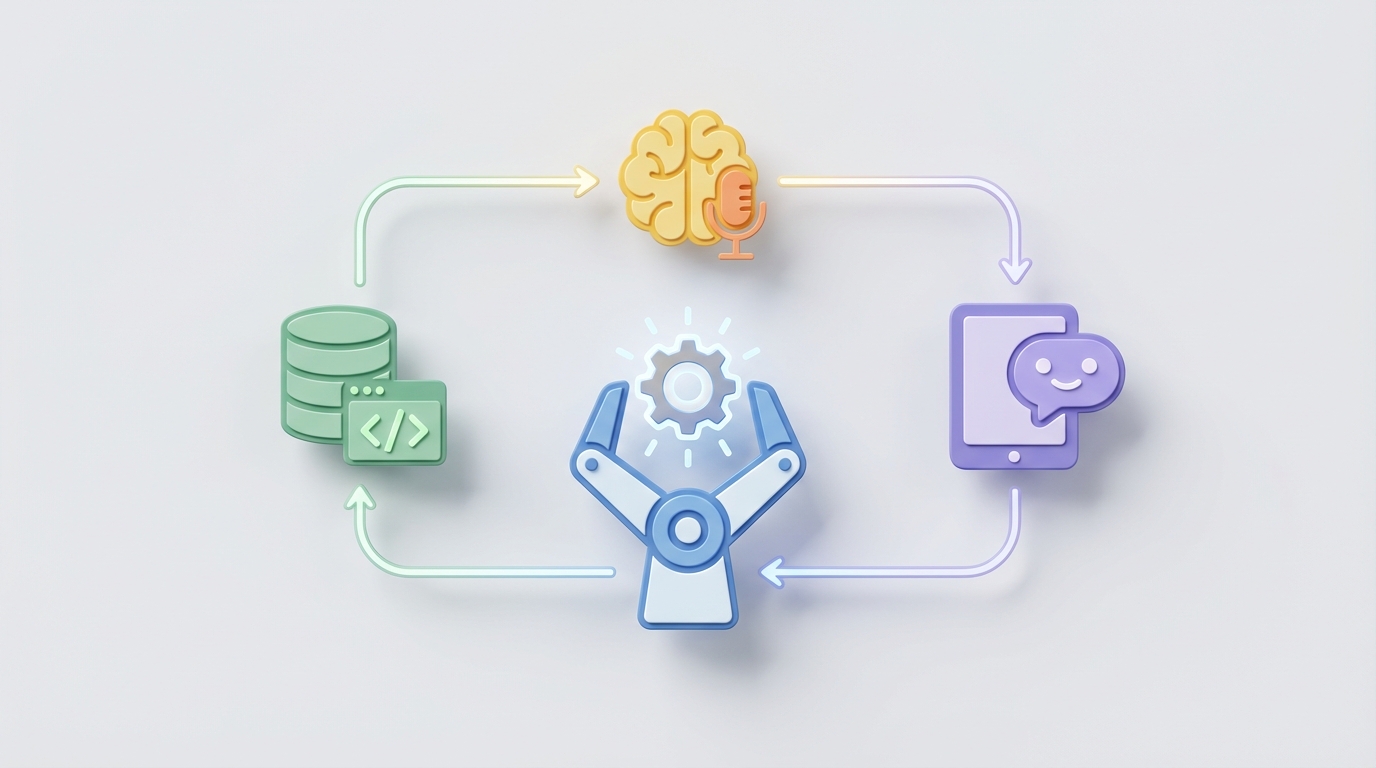
Let's skip the hype and get to the point: you can now build an AI assistant that actually controls your computer. Not a chatbot. Not a fancy autocomplete. A thing that sees your screen, moves your mouse, clicks buttons, types text, and executes multi-step tasks on your behalf.
OpenClaw makes this possible, and it's open source.
I've spent the last few weeks building my own personal assistant with it, and I want to walk you through exactly how to do the same — from zero to a working agent that can handle real tasks on your desktop. I'll share what works, what doesn't, and the exact setup I'd recommend if you're starting fresh today.
Why OpenClaw and Why Now
Most people first heard about "computer use" AI when Anthropic demoed Claude controlling a browser. Cool demo. But then you actually tried it and realized: it's slow, it's expensive (screenshot after screenshot of tokens burning through your API credits), and you're literally streaming images of your entire desktop to a third-party server. Every open tab. Every notification. Every embarrassing Spotify playlist.
OpenClaw exists because enough people looked at that situation and said, "We can do better."
Here's what makes it different:
It runs locally. You can pair it with open-source vision-language models like Qwen2-VL or Llama 3.2 Vision and keep everything on your machine. No screenshots leaving your network. No per-token billing surprises.
It's modular, not monolithic. OpenClaw isn't a single app you install and pray works. It's a component — a set of tools and agent primitives that plug into frameworks you might already be using: LangGraph, CrewAI, AutoGen. You compose your assistant the way you want it.
It's built around a better control loop. Instead of the naive "look at screen → take action → repeat" cycle that gets stuck in loops, OpenClaw implements a "think → locate → act → verify" pattern with optional human-in-the-loop gates for dangerous operations. This alone saves you hours of debugging.
If you've been wanting a personal AI assistant that actually does things rather than just talks about doing things, this is the most practical path available right now.
What You'll Need
Before we start building, let's talk hardware and software requirements honestly.
Minimum viable setup:
- A machine with at least 16GB RAM (32GB preferred)
- A decent GPU if running local models (RTX 3090/4090 for 7B–13B vision models, or multiple GPUs for 70B+)
- Python 3.10+
- Linux or macOS (Windows works but requires more configuration for accessibility permissions)
If you don't want to deal with local model hosting, you can use OpenClaw with API-based models too — you'll just trade privacy and cost savings for convenience. The architecture supports both.
The fastest path from zero? Honestly, Felix's OpenClaw Starter Pack is what I'd point any beginner toward. Felix bundled the pre-configured environment, working prompt templates, and a set of tested agent patterns that would take you a full weekend to assemble yourself. It's the "skip the yak-shaving" option, and I wish it existed when I started.
Step 1: Install OpenClaw and Set Up Your Environment
Let's get the core system running. Open a terminal:
# Clone the OpenClaw repository
git clone https://github.com/openclaw-ai/openclaw.git
cd openclaw

# Create a virtual environment (please don't skip this)
python -m venv .venv
source .venv/bin/activate

# Install dependencies
pip install -e ".[all]"
The [all] flag pulls in integrations for LangGraph, vision model connectors, and the screen interaction layer. If you want a minimal install, you can use [core] instead and add extras later.
Next, configure your display settings. This trips up more people than any other step:
# Check your screen resolution (OpenClaw needs to know this)
python -m openclaw.utils.screen_info
You'll get output like:
Display 0: 2560x1440 @ 2x (HiDPI)
Recommended capture resolution: 1280x720
OpenClaw downscales screenshots before sending them to the vision model. This is critical for both performance and accuracy — feeding a 4K screenshot to a VLM is a waste of tokens and actually reduces accuracy because the model struggles with tiny UI elements at that scale.
Create your config file:
# config.yaml
display:
  monitor: 0
  capture_scale: 0.5

vision:
  provider: "local"  # or "api" for cloud models
  model: "qwen2-vl-7b"
  endpoint: "http://localhost:8000/v1"

agent:
  framework: "langgraph"
  max_steps: 50
  confirmation_required:
    - "delete"
    - "send"
    - "purchase"
    - "submit"

safety:
  sandbox: false  # set to true if running in VM
  restricted_apps: ["Terminal", "System Preferences"]
That confirmation_required list is important. It tells OpenClaw to pause and ask you before executing any action that involves those keywords. I learned the hard way that an unsupervised agent will eventually try to send a half-finished email or delete a folder it shouldn't touch.
Step 2: Set Up Your Vision Model
If you're going local, you need a vision-language model running as a service. I recommend starting with Qwen2-VL-7B — it's the best balance of accuracy and speed for most hardware:
# Using vLLM (fastest option for serving)
pip install vllm

python -m vllm.entrypoints.openai.api_server \
  --model Qwen/Qwen2-VL-7B-Instruct \
  --port 8000 \
  --max-model-len 4096 \
  --gpu-memory-utilization 0.85
Test that it's working:
import requests

response = requests.post("http://localhost:8000/v1/chat/completions", json={
    "model": "Qwen/Qwen2-VL-7B-Instruct",
    "messages": [
        {
            "role": "user",
            "content": [
                {"type": "text", "text": "What do you see in this image?"},
                {"type": "image_url", "image_url": {"url": "data:image/png;base64,..."}}
            ]
        }
    ]
})

print(response.json()["choices"][0]["message"]["content"])
If that returns a sensible description, you're in business.
Pro tip from the community: If you have the VRAM for it, running Qwen2-VL-72B through a quantized GGUF with llama.cpp gives noticeably better results on complex interfaces — things like reading small text in IDE sidebars or distinguishing between similar-looking buttons. The 7B model works great for browsers and simple apps but struggles with dense UIs.
Step 3: Build Your First Agent
Here's where it gets fun. Let's build a simple personal assistant that can open a web browser, search for something, and extract information. We'll use LangGraph because its state machine pattern maps perfectly to computer-use agents.
from openclaw import ScreenCapture, MouseController, KeyboardController
from openclaw.vision import VisionClient
from openclaw.agent import ComputerUseAgent
from langgraph.graph import StateGraph, END

# Initialize OpenClaw components
screen = ScreenCapture(monitor=0, scale=0.5)
mouse = MouseController()
keyboard = KeyboardController()
vision = VisionClient(
    provider="local",
    model="qwen2-vl-7b",
    endpoint="http://localhost:8000/v1"
)

# Create the agent
agent = ComputerUseAgent(
    screen=screen,
    mouse=mouse,
    keyboard=keyboard,
    vision=vision,
    system_prompt="""You are a helpful personal assistant that controls a computer.

    For each step:
    1. THINK: Analyze the current screenshot and determine what needs to happen next.
    2. LOCATE: Identify the exact UI element you need to interact with.
    3. ACT: Perform one precise action (click, type, scroll, or keyboard shortcut).
    4. VERIFY: Check if your action had the expected result.

    If something unexpected happens, describe what went wrong and try an alternative approach.
    Never perform destructive actions without confirmation.
    If you're stuck after 3 attempts at the same step, ask the user for help."""
)

# Define the agent loop as a LangGraph state machine
def think(state):
    screenshot = screen.capture()
    analysis = vision.analyze(screenshot, state["task"], state.get("history", []))
    return {**state, "current_analysis": analysis, "screenshot": screenshot}

def act(state):
    action = agent.decide_action(state["current_analysis"])
    result = agent.execute_action(action)
    history = state.get("history", [])
    history.append({"action": action, "result": result})
    return {**state, "last_action": action, "last_result": result, "history": history}

def check(state):
    screenshot = screen.capture()
    verification = vision.verify(
        screenshot,
        state["last_action"],
        state["current_analysis"]
    )
    return {**state, "verified": verification["success"], "check_notes": verification["notes"]}

def should_continue(state):
    if state.get("verified") and agent.is_task_complete(state):
        return "done"
    if len(state.get("history", [])) >= 50:
        return "done"
    return "think"

# Wire up the graph
workflow = StateGraph(dict)
workflow.add_node("think", think)
workflow.add_node("act", act)
workflow.add_node("check", check)

workflow.set_entry_point("think")
workflow.add_edge("think", "act")
workflow.add_edge("act", "check")
workflow.add_conditional_edges("check", should_continue, {"think": "think", "done": END})

app = workflow.compile()

# Run it
result = app.invoke({
    "task": "Open Firefox, go to weather.com, and tell me the current temperature in Austin, TX"
})

print(f"Task completed in {len(result['history'])} steps")
This is a simplified version, but it captures the core architecture. The think → act → check loop with conditional continuation is the pattern that works. The naive "just keep acting" approaches from earlier tools are why they get stuck in loops.
Step 4: Add Error Recovery (This Is Where Most People Stop)
The agent above will work for simple tasks. But the first time a cookie consent popup appears, or a page loads slowly, or a button is in a slightly different position than expected — it'll break.
Here's the error recovery pattern that the OpenClaw community has converged on:
from openclaw.patterns import RetryWithCritique, HumanEscapeHatch

# Wrap your agent with recovery patterns
recovery = RetryWithCritique(
    max_retries=3,
    critique_prompt="""The last action did not produce the expected result.

    What happened: {result}
    What was expected: {expected}

    Analyze what went wrong and suggest a different approach. Consider:
    - Is there a popup or overlay blocking the target?
    - Has the page finished loading?
    - Is the target element in a different location than expected?
    - Should you scroll to find the element?
    - Is there an alternative way to accomplish this step?"""
)

# Add human escape hatch for when the agent is truly stuck
escape = HumanEscapeHatch(
    trigger_after_retries=3,
    message="I'm stuck on this step. Can you help me get past this point?"
)

agent.add_recovery(recovery)
agent.add_recovery(escape)
This is the difference between a demo and a tool you actually use. The critique loop forces the model to reason about why something failed before trying again, instead of blindly repeating the same action.
Step 5: Give It Memory
For a personal assistant to be genuinely useful, it needs to remember things across sessions. OpenClaw supports pluggable memory backends:
from openclaw.memory import PersistentMemory

memory = PersistentMemory(
    backend="sqlite",  # also supports "chroma", "redis"
    db_path="./assistant_memory.db"
)

# The agent can now store and retrieve information
agent.set_memory(memory)

# It will automatically:
# - Remember which apps are where on your desktop
# - Learn your common workflows
# - Store login states (which sites you're logged into)
# - Track task history for context
This is one of those features that sounds minor but transforms the experience. After a few sessions, the agent stops wasting steps figuring out that your browser is in the dock on the left, or that you use a specific email client.
The Honest Truth About Reliability
I'd be doing you a disservice if I painted this as a fully autonomous butler. It's not. Here's where things actually stand:
What works well right now:
- Browser-based tasks (searching, filling forms, navigating known sites)
- File management (organizing, renaming, moving files)
- Simple multi-app workflows (copy from browser → paste into document)
- Repetitive tasks you can template
What's still rough:
- Complex, novel tasks with many branching decisions
- Apps with unusual or custom UIs
- Anything requiring fast reaction times
- Tasks where a single mistake has serious consequences
The community consensus — and my own experience — is that the best mode right now is supervised co-pilot. Let the agent handle the tedious multi-step stuff while you watch and intervene when needed. Think of it as a very capable intern on their first week. Helpful, but you're not handing them the company credit card unsupervised.
What I'd Actually Do If Starting Today
If I were building my first OpenClaw personal assistant from scratch today, here's the exact order I'd do things:
-
Grab Felix's OpenClaw Starter Pack. Seriously. The pre-configured prompts and tested agent patterns alone are worth it. I spent three days debugging a screenshot scaling issue that the Starter Pack handles out of the box. Felix put together a genuinely well-thought-out package — the prompt templates for different task categories (browser tasks, file management, text editing) are battle-tested and save you the worst part of the experimentation phase.
-
Start with browser-only tasks. Constrain your agent to Firefox or Chrome. Browser UIs are the most consistent, most well-understood by vision models, and lowest risk if something goes wrong.
-
Run in a VM first. Use something like UTM (macOS) or VirtualBox. Let the agent make its mistakes inside a sandbox where nothing matters.
-
Build one specific workflow, not a general assistant. "Research agent that searches for X and compiles notes in Obsidian" will work dramatically better than "do whatever I ask." Constrained tasks = higher success rates.
-
Graduate to desktop-wide control only after you trust the loop. Once your browser agent is solid, start expanding. Add file management. Then text editing. Build trust incrementally.
Next Steps
You've got the foundation. From here, the paths diverge based on what you want:
- For power users: Dive into the LangGraph integration and build multi-agent systems where a planner agent decomposes tasks and a worker agent executes them. This is where things get genuinely powerful.
- For privacy-focused setups: Invest in the hardware to run Qwen2-VL-72B locally. The accuracy jump over the 7B model is significant, and you'll never send a screenshot off your machine.
- For people who just want it to work: Start with Felix's Starter Pack, follow his setup guide, and customize from there. This is the shortest distance between "I want a computer-use AI" and actually having one.
The computer-use agent space is moving incredibly fast. What barely worked six months ago now handles real tasks reliably enough to save meaningful time. OpenClaw is the best open-source entry point into this world, and the community around it is one of the most practically-minded I've seen in AI — less hype, more "here's what actually works."
Go build something. Start small. Let it fail in safe environments. And don't let it near your email unsupervised. You've been warned.