Automate Product Image Optimization: Build an AI Agent That Updates Listings
Automate Product Image Optimization: Build an AI Agent That Updates Listings
Every e-commerce team has the same dirty secret: someone on your staff is spending 20+ hours a week in Photoshop, manually removing backgrounds, adjusting white balance, resizing for six different platforms, and compressing files — one image at a time. Multiply that across a catalog of a few thousand SKUs, and you've got a full-time employee whose entire job is repetitive image manipulation.
That's not a good use of anyone's time. And it's definitely not a competitive advantage.
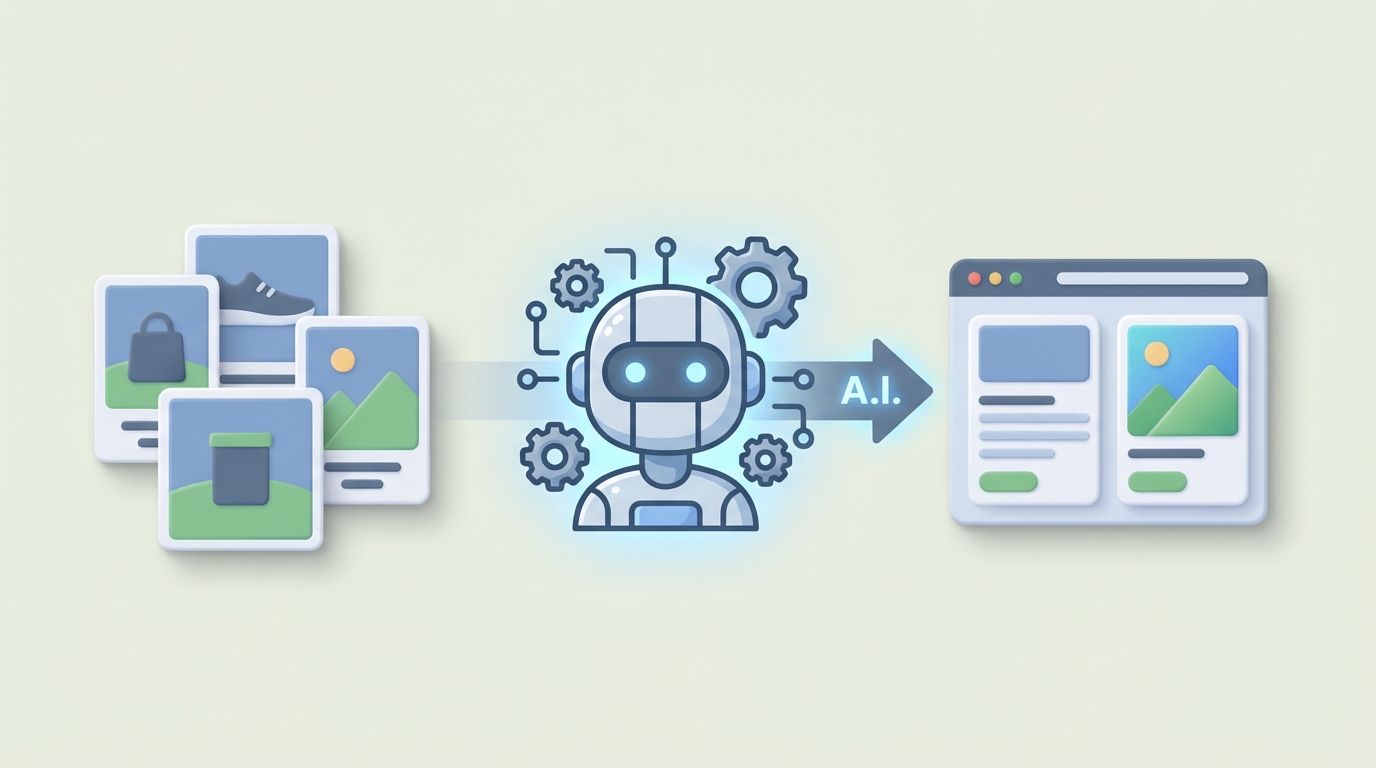
The good news: most of this work can be automated right now. Not "in the future," not "when AI gets better" — today. I'm going to walk you through exactly how to build an AI agent on OpenClaw that handles product image optimization end to end, from the moment a raw photo lands in your system to the moment an optimized, platform-ready image gets pushed to your listing.
No hype. Just the workflow, the tools, and the math.
The Manual Workflow (And Why It's Killing Your Velocity)
Let's be honest about what "product image optimization" actually involves. It's not one task — it's a chain of eight to ten discrete steps, each with its own tools, its own expertise requirements, and its own failure modes.
Here's the typical workflow for a mid-market e-commerce brand:
Step 1: Photography. Studio shoot with controlled lighting. Light boxes, turntables, or a hired photographer. You need 6–12 angles per product. For a brand launching 500 new SKUs in a season, that's 3,000–6,000 raw images before anyone touches an editor.
Step 2: Background removal. Pen tool, magic wand, layer masking in Photoshop. Simple products (a solid-colored mug on a white backdrop) take 3–5 minutes. Complex products (a lace blouse, translucent glassware, anything with hair or fine edges) take 15–30 minutes each.
Step 3: Color correction and retouching. White balance adjustments, exposure curves, spot healing for dust and scratches. This is where a skilled retoucher earns their money — and where the bottleneck really starts.
Step 4: Cropping and composition. Amazon wants 85% product fill on a pure white background. Your Shopify store uses a different aspect ratio. Instagram shopping wants square. Each platform has rules, and they're all different.
Step 5: Shadow and reflection creation. Adding natural-looking drop shadows or reflections so the product doesn't look like it's floating in a void. Subtle, but it matters for perceived quality.
Step 6: Resizing. Thumbnails, product detail pages, zoom-capable images, mobile-optimized versions. One source image becomes four to six output files.
Step 7: Compression and format conversion. Balancing file size against visual quality. Converting to WebP or AVIF for modern browsers while keeping JPEG fallbacks.
Step 8: Consistency enforcement. Making sure product #4,372 looks like it belongs in the same catalog as product #1. Same lighting feel, same color profile, same margins.
Step 9: Quality assurance. A human reviews everything for artifacts, color accuracy, brand standards compliance, and anything that could trigger returns.
Step 10: Upload and listing update. Push the final images to each sales channel — your storefront, Amazon, wholesale portals — with correct naming conventions and metadata.
How long does this actually take?
For a mid-complexity product (think: a leather bag, a kitchen appliance, a pair of sneakers), professional retouching runs 8–25 minutes per image. Complex items — jewelry, glassware, anything with reflective or translucent surfaces — can hit 45 minutes or more.
A 2023 survey by Pixelz found that companies with 5,000+ SKUs typically spend 600–2,000 hours per year on image editing alone. That's roughly one full-time employee doing nothing but Photoshop work. Small brands launching new collections report 15–30 hours per week just on photography and editing.
And the cost? Professional editing services charge $0.40–$2.50 per image for standard work. Fashion and luxury can run $5–$12 per image. A 10,000-SKU catalog with 6 images per product at $1.50 each is $90,000 just for the editing pass.
What Makes This Painful (Beyond the Obvious)
The time and cost numbers above are bad enough. But the real damage is subtler:
Speed to market suffers. When your image pipeline takes 2–6 weeks from shoot to listing, you're slow. Your competitors who've automated are launching faster, testing more variations, and iterating on what converts.
Inconsistency creeps in. If you're using freelancers or multiple editors, visual discrepancies accumulate. Different white balance, different shadow styles, different cropping approaches. Consumers notice this subconsciously — it erodes trust.
Returns spike from bad images. This one hurts the most. A Baymard Institute study found that inaccurate product images and poor visualization contribute to roughly 22% of returns. Every image that misrepresents color, scale, or detail is a return waiting to happen. Returns don't just cost you shipping — they cost you the customer.
The talent problem is real. Good retouchers are expensive and hard to retain. You're competing for the same talent pool as advertising agencies, fashion brands, and media companies. When your best editor leaves, your pipeline breaks.
The core issue isn't any one of these problems in isolation. It's that the entire workflow is a serial bottleneck. Every step depends on the previous step, and the whole chain moves at the speed of the slowest link — which is almost always a human doing repetitive mechanical work.
What AI Can Handle Right Now
Let's be specific about what's actually automatable in 2026, because there's a lot of overblown marketing out there.
High confidence (95%+ success rate on standard products):
- Background removal and replacement
- Smart cropping and subject detection
- File optimization, compression, and format conversion
- Resolution enhancement and upscaling
- Basic color correction and white balancing
- Batch consistency (applying uniform adjustments across product sets)
- Shadow and reflection generation
- Image resizing for multiple platform specifications
Improving rapidly (80–90% success rate, needs spot-checking):
- Lifestyle context generation (placing products in realistic scenes)
- Color variant generation from a single photo
- Lighting normalization across images shot in different conditions
Still needs a human:
- Creative direction (deciding what to shoot and how to present it)
- Quality control for subtle artifacts (weird edges, distorted textures, unnatural lighting)
- Complex materials (highly reflective metals, translucent glass, fine lace)
- Brand accuracy verification (does this image truthfully represent the physical product?)
- Legal and compliance review
- Final shot selection for commercial effectiveness
The key insight: AI handles the mechanical, repetitive 80% exceptionally well. The creative, judgmental 20% still needs a human — but that human is now freed up to focus on the work that actually matters instead of spending their day removing backgrounds.
Step-by-Step: Building the Automation with OpenClaw
Here's where we get practical. OpenClaw gives you the infrastructure to build an AI agent that orchestrates the entire image optimization pipeline — connecting image processing APIs, enforcing your brand rules, handling batch operations, and pushing results to your listing platforms.
Architecture Overview
Your agent needs to do five things:
- Ingest raw images (from a folder, S3 bucket, or upload trigger)
- Process each image through an optimization pipeline
- Validate results against your brand standards
- Generate platform-specific variants
- Push optimized images to your sales channels (or a review queue)
Step 1: Define Your Agent's Configuration in OpenClaw
Start by setting up your agent with clear instructions about your brand standards. This is where you encode all the tribal knowledge that currently lives in your style guide (or, more likely, in one person's head).
agent:
  name: product-image-optimizer
  description: >
    Processes raw product images through background removal,
    color correction, resizing, and compression. Outputs
    platform-ready images for Shopify, Amazon, and social.

  brand_standards:
    background: "#FFFFFF"
    product_fill_percentage: 85
    shadow_style: "soft_drop"
    shadow_opacity: 0.15
    color_profile: "sRGB"
    min_resolution: 2048

  output_formats:
    shopify_pdp:
      width: 2048
      height: 2048
      format: "webp"
      quality: 90
    amazon_main:
      width: 2000
      height: 2000
      format: "jpeg"
      quality: 95
      background: "pure_white"
    thumbnail:
      width: 400
      height: 400
      format: "webp"
      quality: 80
    social_square:
      width: 1080
      height: 1080
      format: "jpeg"
      quality: 90
Step 2: Build the Processing Pipeline
In OpenClaw, you define the steps your agent executes on each image. Each step is a tool call — OpenClaw orchestrates the sequence and handles errors, retries, and logging.
from openclaw import Agent, Tool, Pipeline

# Initialize the agent
agent = Agent("product-image-optimizer")

# Define the processing pipeline
pipeline = Pipeline([
    Tool("background_removal", config={
        "method": "ai_segmentation",
        "edge_refinement": True,
        "fallback": "manual_review_queue"
    }),

    Tool("color_correction", config={
        "auto_white_balance": True,
        "target_profile": "sRGB",
        "exposure_normalization": True,
        "saturation_boost": 0.05  # Slight bump for web display
    }),

    Tool("shadow_generation", config={
        "style": "soft_drop",
        "opacity": 0.15,
        "angle": 180,
        "blur_radius": 25
    }),

    Tool("smart_crop", config={
        "subject_detection": True,
        "target_fill_percentage": 85,
        "center_mode": "subject_centroid"
    }),

    Tool("resize_and_compress", config={
        "outputs": agent.config.output_formats,
        "sharpening": "adaptive",
        "compression": "perceptual"  # Optimizes for human visual perception
    }),

    Tool("quality_check", config={
        "min_sharpness_score": 0.7,
        "artifact_detection": True,
        "brand_consistency_check": True,
        "flag_threshold": 0.85  # Below this, route to human review
    })
])

agent.register_pipeline(pipeline)
Step 3: Set Up the Trigger and Batch Processing
You want this to run automatically when new images appear — not require someone to manually kick off a job.
from openclaw import Trigger, BatchProcessor

# Watch for new images in your storage
trigger = Trigger("file_upload", config={
    "source": "s3://your-bucket/raw-product-images/",
    "file_types": ["jpg", "jpeg", "png", "tiff", "raw"],
    "batch_size": 50,  # Process in batches of 50
    "cooldown_seconds": 30  # Wait for batch to accumulate
})

# Configure batch processing
batch = BatchProcessor(
    agent=agent,
    concurrency=10,  # Process 10 images simultaneously
    error_handling="continue_and_flag",  # Don't stop batch on single failure
    output_destination="s3://your-bucket/optimized-images/",
    review_queue="s3://your-bucket/needs-review/"
)

# Connect trigger to processor
trigger.on_event(batch.process)
Step 4: Add the Listing Update Integration
This is the part most people forget — getting the optimized images into your actual product listings without manual intervention.
from openclaw import Integration

# Shopify integration
shopify = Integration("shopify", config={
    "store_url": "your-store.myshopify.com",
    "api_key": "${SHOPIFY_API_KEY}",
    "image_mapping": {
        "main": "shopify_pdp",
        "thumbnail": "thumbnail"
    }
})

# Amazon integration
amazon = Integration("amazon_sp_api", config={
    "marketplace": "US",
    "credentials": "${AMAZON_SP_CREDENTIALS}",
    "image_mapping": {
        "MAIN": "amazon_main"
    }
})

# After processing, push to platforms
@agent.on_complete
def update_listings(results):
    for result in results:
        if result.quality_score >= 0.85:
            sku = result.metadata.get("sku")
            shopify.update_product_images(sku, result.outputs)
            amazon.update_product_images(sku, result.outputs)
        else:
            # Route to human review queue
            result.route_to("manual_review")
            notify_team(f"Image for {sku} needs review: score {result.quality_score}")
Step 5: Monitor and Iterate
OpenClaw gives you observability into your pipeline so you can identify where things break and improve over time.
from openclaw import Dashboard

dashboard = Dashboard(agent, config={
    "metrics": [
        "images_processed_per_day",
        "average_quality_score",
        "human_review_rate",
        "processing_time_per_image",
        "error_rate_by_step"
    ],
    "alerts": {
        "human_review_rate_above": 0.20,  # Alert if >20% need review
        "error_rate_above": 0.05
    }
})
What Still Needs a Human (Don't Skip This)
I want to be direct about this because too many AI articles pretend everything is fully automated. It's not.
You still need a human for:
Creative decisions. Your agent can optimize an image, but it can't decide whether a lifestyle shot in a modern kitchen will convert better than a clean white background. That's strategy, and it requires understanding your customer.
Artifact detection on complex products. AI background removal is excellent on solid, well-defined products. But throw in a product with fine mesh, transparent elements, wispy fabric, or complex metallic reflections, and you'll get artifacts that AI quality checks might miss. A trained eye catches these in seconds.
Brand accuracy verification. If an AI subtly shifts the color temperature and your burgundy leather bag now looks more like cherry red, that's a return waiting to happen. Someone needs to spot-check that images truthfully represent the physical product.
Initial calibration. When you first build this system, you'll spend time tuning thresholds, adjusting your brand standards config, and reviewing the first few batches carefully. Budget a week or two for calibration before you trust the pipeline to run mostly unsupervised.
The smart approach — and what companies like Zalando and ASOS have landed on — is AI-first processing with targeted human oversight. Your agent handles the 80–90% that's mechanical. Your human editor reviews the flagged exceptions and does the creative work that actually benefits from their expertise.
Expected Time and Cost Savings
Let's run the numbers on a real scenario.
Assume: A brand with 5,000 SKUs, 6 images per SKU, launching 2,000 new products per year.
Current manual costs:
- 12,000 new images/year × 15 minutes average editing time = 3,000 hours/year
- At $35/hour (blended cost of in-house editor) = $105,000/year
- Plus freelance overflow during peak seasons: ~$15,000–$25,000
- Time to market: 3–5 weeks from shoot to listing
With OpenClaw automation:
- Processing time per image: 8–15 seconds (vs. 15 minutes)
- Human review needed for ~10–15% of images: 300–450 hours/year (down from 3,000)
- OpenClaw infrastructure costs + API fees: approximately $12,000–$18,000/year (varies by volume)
- One part-time editor for review and creative work: ~$35,000/year
- Time to market: 24–48 hours from shoot to listing
Net savings: roughly $55,000–$75,000/year in direct costs, plus the massive competitive advantage of getting products live in days instead of weeks. That faster time-to-market alone can be worth multiples of the cost savings in additional revenue.
Companies using AI-first image workflows consistently report 50–85% cost reduction and 85–90% time reduction on the processing side. The remaining time gets redirected to creative work that actually moves the needle on conversion.
Getting Started
You don't need to automate everything on day one. Here's a pragmatic rollout:
Week 1: Set up OpenClaw with background removal and basic compression only. Process a test batch of 100 images. Compare quality against your current manual output.
Week 2–3: Add color correction, shadow generation, and smart cropping. Tune your brand standards configuration until the output matches your style guide. Run a larger batch (500+ images) and have your editor review everything.
Week 4: Connect the Shopify/Amazon integrations. Start pushing optimized images to a staging environment. Verify that everything looks right on actual product pages.
Month 2: Go live. Switch your pipeline so new product photos flow through OpenClaw automatically. Keep your human review threshold conservative (flag anything below 0.90 quality score) until you build confidence.
Month 3+: Gradually lower the review threshold as you confirm quality. Your editor shifts from reviewing every image to handling exceptions and focusing on creative direction, A/B testing hero images, and building lifestyle content.
Your product images are either helping you sell or costing you sales. The mechanical work of optimizing them doesn't need to be a bottleneck anymore.
If you want help building this workflow — or any AI agent workflow for your e-commerce operations — check out our Clawsourcing services. We'll scope the project, build the agent, and get your pipeline running so your team can focus on the work that actually requires a human brain.