AI Agent for Google Drive: Automate File Organization, Sharing, and Document Workflows
Automate File Organization, Sharing, and Document Workflows
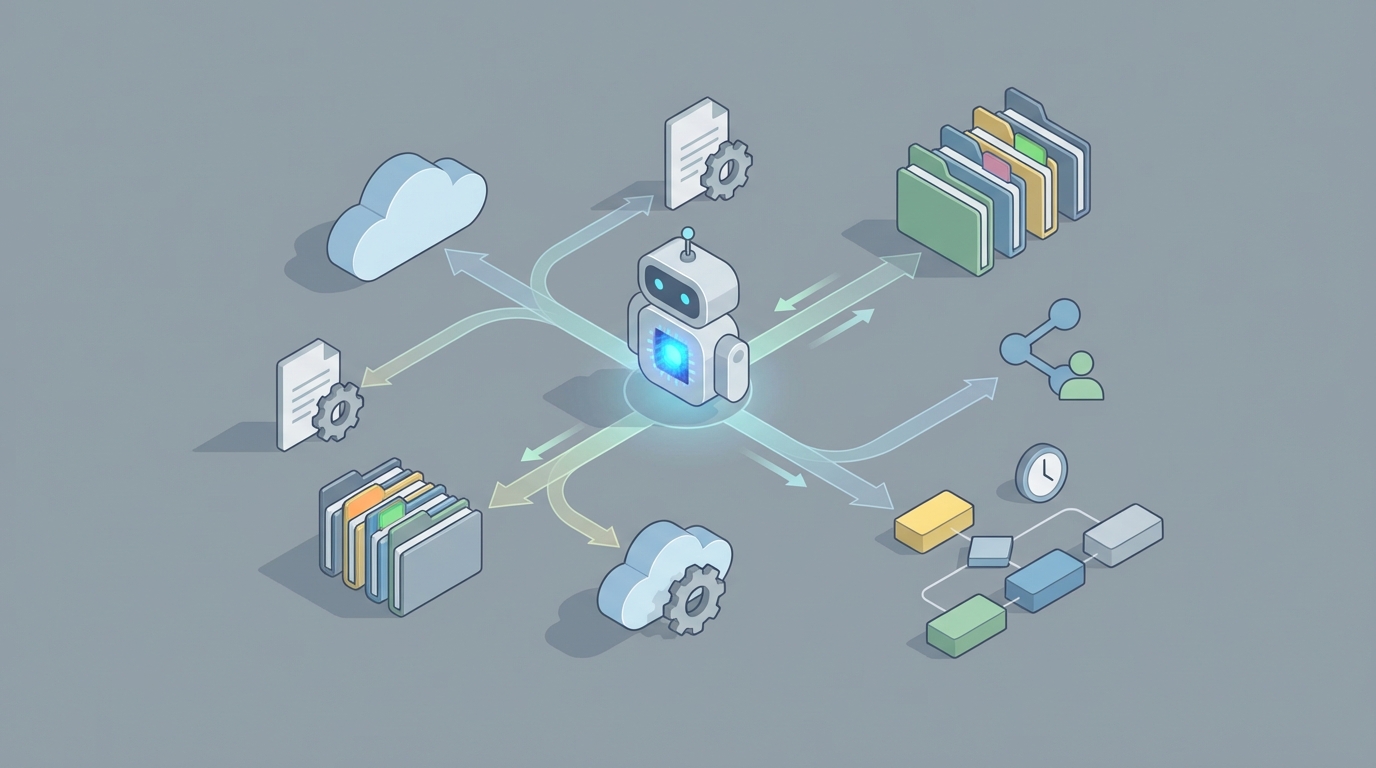
Google Drive is where your company's knowledge goes to die.
Not immediately. At first, it's great. You create a few folders, share some docs, collaborate in real time. But then six months pass. Then a year. Suddenly you've got 47,000 files across a dozen Shared Drives, nobody can find anything, there are three versions of every contract (none labeled "final" correctly), and new hires spend their first week just trying to figure out where things live.
The irony is that Google Drive is genuinely good at what it does — storing files and enabling collaboration. What it's terrible at is everything that happens around the files: organizing them intelligently, routing them to the right people, extracting useful information from them, and making sure nothing falls through the cracks.
Google knows this, which is why they keep bolting on AI features. But those features are surface-level. What you actually need is a custom AI agent that connects to Google Drive's API and does real work — classifying documents, enforcing naming conventions, monitoring for compliance issues, extracting data from uploads, and answering questions about your company's actual documents.
That's what you can build with OpenClaw. Let me show you how.
Why Google Drive's Native Automation Falls Short
Before we get into the solution, let's be honest about the problem.
Google Drive's built-in automation capabilities are, to put it generously, minimal. Here's what you're working with natively:
- Apps Script: Google's JavaScript-based scripting platform. It works, but it has a 30-minute execution limit, daily quotas, and requires actual code. Most teams don't have someone who can write and maintain Apps Script triggers.
- Notifications: You can get notified when someone comments or shares something. That's about it. There's no "notify me when a contract hasn't been reviewed in 5 days" or "alert me when someone uploads a file with PII."
- Triggers: File created, file modified, time-driven, form submit. That's the whole menu. No conditional logic, no multi-step workflows, no branching.
There's no visual workflow builder. No document understanding. No smart routing. No state management (Draft → In Review → Approved → Archived). No semantic search.
This is why companies layer Zapier or Make.com on top. But even those tools hit a ceiling quickly because they don't understand what's inside your documents. They can move files around based on folder locations or file names, but they can't read a PDF invoice and extract the vendor name, amount, and due date. They can't look at a proposal and determine whether it needs legal review based on the contract terms inside it.
That's where an AI agent comes in.
What a Google Drive AI Agent Actually Does
An AI agent connected to Google Drive via OpenClaw isn't just another automation. It's an intelligence layer that turns Drive from a passive file store into an active knowledge and workflow system.
Here's what that looks like in practice:
Intelligent File Organization
The agent monitors your Drive using Google's Changes API (webhooks that fire when files are created, modified, moved, or deleted). When a new file lands, the agent:
- Reads the file content using the Drive API's export capabilities
- Classifies it (contract, proposal, invoice, meeting notes, creative brief, etc.)
- Applies custom metadata tags using the API's
appPropertiesfield - Moves it to the correct folder based on classification
- Enforces naming conventions automatically
- Detects duplicates by comparing content similarity, not just file names
No more "Q4 Budget FINAL (2).xlsx" living in someone's personal Drive while three people are editing different versions.
Smart Document Routing
When a document is classified, the agent can kick off the appropriate workflow:
- Contracts → Share with legal team for review, set a reminder for 48-hour turnaround
- Invoices → Extract key fields (vendor, amount, date, PO number), write to a tracking Sheet, notify finance
- Creative assets → Move to the appropriate campaign folder, tag with project metadata, notify the design lead
- Meeting notes → Link to the relevant project Shared Drive, extract action items, create tasks
This isn't hypothetical. These are the exact workflows that operations teams build manually today, spending hours every week on file triage that an agent handles in seconds.
Semantic Search Over Your Entire Drive
Google Drive's search is keyword-based. If you don't remember the exact words in the document or its file name, good luck finding it.
An AI agent built on OpenClaw can index your Drive contents and enable semantic search:
- "Find all proposals we sent to enterprise customers in Q3 that included custom SLA terms"
- "What pricing did we quote Acme Corp in our last three proposals?"
- "Show me every document that references the GDPR data processing agreement"
This works because the agent doesn't just search file names and metadata — it understands the actual content of your documents.
Proactive Monitoring and Compliance
This is where things get really valuable. Instead of waiting for someone to notice a problem, the agent watches for issues continuously:
- Permission sprawl: "This confidential HR document is shared with 47 people, including 12 outside the organization. Flag for review."
- Stale documents: "The Q4 budget deck hasn't been updated in 3 weeks. The quarterly close is in 5 days."
- PII detection: "This uploaded PDF contains Social Security numbers. Moving to restricted folder and notifying compliance."
- Missing signatures: "This vendor agreement in the Executed Contracts folder doesn't appear to contain signatures."
- Link sharing audit: "23 files in the Finance Shared Drive are set to 'Anyone with the link can view.' Here's the list."
Try doing any of that with native Google Drive features. You can't.
How to Build This with OpenClaw
Here's where we get specific. OpenClaw gives you the platform to build these agents without stitching together five different tools and writing thousands of lines of glue code.
Step 1: Connect to Google Drive's API
The Google Drive API v3 is comprehensive and well-documented. Your OpenClaw agent needs these core capabilities:
File Operations
- files.list — Search and enumerate files
- files.get — Retrieve file metadata and content
- files.create — Create new files/folders
- files.update — Modify metadata, move files, rename
- files.export — Convert Google Docs/Sheets/Slides to PDF, DOCX, CSV, etc.
- files.copy — Duplicate files
Change Monitoring
- changes.list — Poll for changes since a given page token
- changes.watch — Set up push notifications (webhooks) for real-time monitoring
Permissions
- permissions.list — See who has access to a file
- permissions.create — Share a file with specific users/groups
- permissions.update — Change permission levels
- permissions.delete — Revoke access
Metadata
- files.update with appProperties — Add custom key-value metadata to any file
- Custom search queries using appProperties for your own taxonomy
The Changes API is particularly important. It lets your agent receive near-real-time notifications when anything happens in a Drive or Shared Drive. This is the foundation for all proactive monitoring — the agent doesn't have to poll constantly; Google tells it when something changed.
Step 2: Build the Intelligence Layer in OpenClaw
This is where OpenClaw shines. Once your agent has access to the Drive API, you configure it to:
Classify documents on upload. When the Changes API fires a notification for a new file, the agent:
- Downloads or exports the file content
- Sends it through OpenClaw's document understanding pipeline
- Returns a classification (document type, department, project, sensitivity level)
- Writes that classification back to the file as custom
appProperties
Extract structured data. For specific document types (invoices, contracts, proposals), the agent extracts key fields and writes them to a Google Sheet, a CRM, or any downstream system. An invoice upload, for example, triggers extraction of:
- Vendor name
- Invoice number
- Amount
- Due date
- Line items
- PO reference
Generate summaries and metadata. For long documents (meeting transcripts, research reports, strategy decks), the agent generates a concise summary and stores it as a custom property. This powers faster search and helps people decide whether to open a 40-page document.
Step 3: Define Your Workflows
With OpenClaw, you define business rules that turn classifications and extractions into actions:
Contract Review Workflow:
WHEN: New file uploaded to "Incoming Contracts" folder
AND: Classification = "Contract" or "Agreement"
THEN:
  1. Extract parties, effective date, term, value
  2. Check if value > $50,000
  3. IF yes → Share with General Counsel + CFO, set comment "Requires executive review"
  4. IF no → Share with Legal team, set comment "Standard review"
  5. Add appProperty: status = "In Review"
  6. Create calendar reminder for 3 business days
  7. Log to Contract Tracker sheet
Content Pipeline Workflow:
WHEN: File modified in "Content Drafts" folder
AND: appProperty status = "Draft"
AND: File contains phrase "ready for review" in comments
THEN:
  1. Move to "Content Review" folder
  2. Update appProperty: status = "In Review"
  3. Share with editor group
  4. Post notification to #content-review Slack channel
  5. Set 48-hour review deadline reminder
Compliance Monitoring Workflow:
EVERY: 24 hours
SCAN: All Shared Drives
CHECK: Files with external sharing enabled
AND: File is in folders tagged as "Internal Only" or "Confidential"
THEN:
  1. Compile list of violations
  2. Send summary to compliance-team@company.com
  3. For files with PII detected → Immediately restrict to domain-only sharing
  4. Log all actions to Compliance Audit sheet
These aren't theoretical. These are the workflows that operations, legal, finance, and marketing teams need but currently execute manually (or don't execute at all, which is worse).
Step 4: Add the Conversational Interface
One of the most immediately useful features is giving your team a chat interface to their Drive. Instead of clicking through folders and trying different search terms, they just ask:
- "What's the status of the Acme Corp contract?"
- "Who has access to the Q4 financial model?"
- "Find the brand guidelines PDF and share it with sarah@agency.com with view-only access"
- "Summarize the meeting notes from last Tuesday's product sync"
- "What did we agree to in the March SOW with CloudTech?"
The agent handles the API calls, searches the content, and responds with answers — not just links to files you then have to open and read yourself.
Real-World Scenarios Where This Pays for Itself
Consulting Firms
Every client engagement generates hundreds of files: proposals, SOWs, deliverables, meeting notes, data room contents. Without an agent, consultants spend 20-30% of their time just finding and organizing documents. With an agent, files auto-sort into client project structures, deliverables get tracked against SOW milestones, and anyone on the team can ask "What did we recommend to Client X about their pricing strategy?" and get an answer in seconds.
Marketing Agencies
Content calendars, creative briefs, draft assets, client feedback, final deliverables — all flowing through Drive with no consistent process. An agent classifies every upload, routes briefs to the right creative team, tracks asset versions, and ensures final deliverables land in the client-facing folder with correct permissions (not the embarrassing internal feedback version).
Finance Teams
Monthly close processes involve dozens of spreadsheets, supporting documents, and approvals. An agent monitors the close folder structure, tracks which reports are completed vs. outstanding, extracts key figures from uploaded P&Ls for executive dashboards, and flags when a required document is missing 48 hours before deadline.
HR and People Ops
Employee onboarding requires signed documents, completed forms, training acknowledgments, and equipment requests — all typically tracked in a messy spreadsheet. An agent monitors the new hire folder, verifies all required documents are present, extracts key information (start date, role, department), and alerts HR when something is missing.
What You're Not Getting Without This
Let me be blunt about the cost of inaction. Without an AI agent on your Google Drive:
- Knowledge is trapped. The information exists in your Drive, but nobody can find it without already knowing where it is.
- Processes are manual. Every file routing decision, every permission change, every compliance check is someone's manual task.
- Mistakes compound. Wrong permissions, lost documents, missed deadlines, duplicate work — these costs are invisible but enormous.
- Onboarding is brutal. New hires have no way to discover institutional knowledge without bothering five different people.
- You're paying for storage, not intelligence. Google charges you for the bytes. The value is in what those bytes mean.
Technical Considerations
A few things to keep in mind when building this:
API Quotas: Google Drive API has daily limits — roughly 20,000 queries per 100 seconds for most operations. For large Drives, you'll need to be smart about batching and caching. The batch request endpoint lets you combine up to 100 API calls into a single HTTP request.
Shared Drives vs. My Drive: Shared Drives have different permission models and API parameters. Your agent needs to handle both. Use supportsAllDrives=true and includeItemsFromAllDrives=true in your API calls.
File Export Limits: Google Docs can be exported to various formats, but there are size limits (10MB for exported files). For large documents, you may need to handle pagination or chunking.
Custom Properties: appProperties are private to your application (other apps can't see them), while properties are visible to all apps. Use appProperties for your agent's internal taxonomy and properties for metadata you want visible across tools.
Webhook Reliability: The Changes API's push notifications can occasionally miss events. Build in a periodic full sync (every few hours) as a safety net alongside real-time webhooks.
Getting Started
You don't need to build all of this at once. The highest-ROI starting point for most companies:
- Start with classification and organization. Connect OpenClaw to your Drive, monitor for new files, auto-classify and tag them. This alone saves hours per week.
- Add semantic search. Index your existing documents so people can actually find things. The immediate productivity gain is massive.
- Layer in workflows. Start with your most painful manual process — usually contract review or invoice processing — and automate it.
- Expand to monitoring. Permission audits, stale document detection, compliance scanning.
- Deploy the chat interface. Give your team natural-language access to their entire document library.
Each step builds on the previous one, and each delivers measurable value independently.
If your team is spending more than a few hours a week on file organization, document routing, or "finding that one doc" — you have a strong case for building a Google Drive AI agent with OpenClaw.
Want help scoping it out? Clawsourcing connects you with implementation specialists who've built these integrations before. They'll assess your current Drive setup, identify the highest-impact workflows, and get your agent running — so your Drive actually works as hard as your team does.